Keeping Your Team Data Accurate and Secure
Running a commercial cleaning business requires constant coordination between your office and your cleaning crews. When staff members change their contact information, update their availability, or transition into new roles, your management system needs to reflect those changes immediately to avoid operational friction.
CleanTrack360 provides a centralized hub to update your team members' details. Whether you are onboarding a new hire or adjusting the administrative access for an existing manager, keeping these profiles updated ensures your team remains aligned with your current company requirements.
The Challenge of Managing Crew Data
When employee information is stored in fragmented systems, such as physical binders or outdated spreadsheets, simple tasks can quickly become administrative burdens. Managing your cleaning team through a dedicated platform helps solve several common operational hurdles:
- Access Management: Ensuring that administrative privileges are granted only to those who need them.
- Communication Consistency: Preventing delays in scheduling notifications due to outdated email addresses or phone numbers.
- Role Clarity: Maintaining accurate hourly rates and system access levels for staff across different locations.
How to Update Team Profiles in CleanTrack360
Step-by-Step Profile Management
Updating your team data is a straightforward process designed to save you time. First, navigate to the Team section and use the search bar to find the specific member by their name or email address.
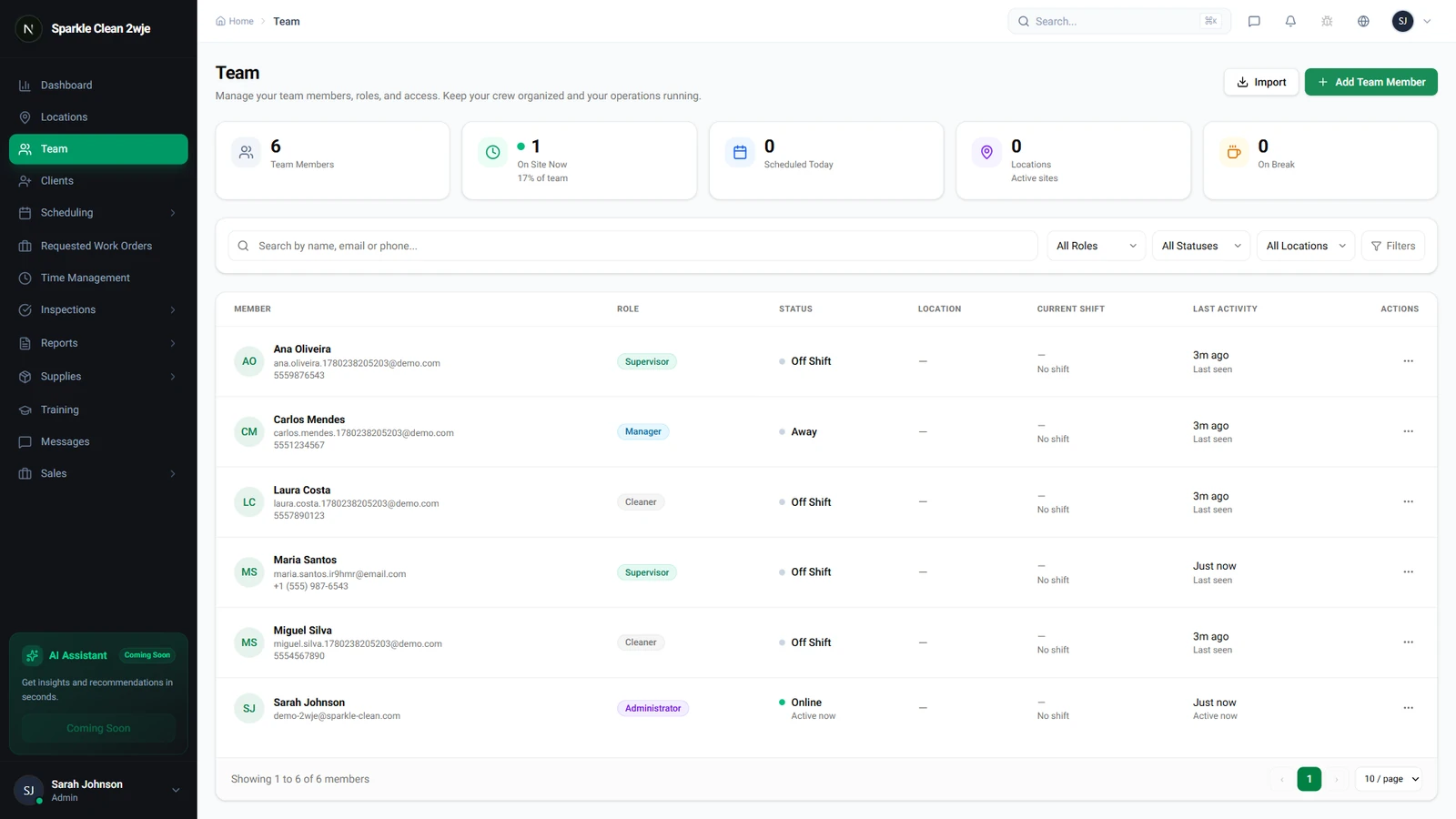
Once you have located the individual, click on their name to open their personal profile page. From here, click the Edit button to open the form, which will come pre-loaded with the employee's current information.
Modifying Details and Security Settings
Within the edit form, you can update various fields including the team member's name, email, phone number, role, hourly rate, and security PIN. Once your changes are complete, simply click Save to apply them instantly across the system.
Please exercise caution when modifying user roles. Changing a user from a Manager to Cleaning Staff takes effect immediately and will remove their administrative access to the platform.
Getting Started with Team Updates
To begin managing your team, log in to your dashboard and head to the Team tab. Keeping these records current is a simple step that helps maintain clear communication and operational security across your entire organization.
If you have any questions during this process or encounter any issues while updating your team profiles, our support team is ready to assist. You can reach out directly through the Support section located in your CleanTrack360 dashboard.