Streamline Your Cleaning Operations with Flexible Scheduling
Running a commercial cleaning company means navigating constant changes. Whether it is an unexpected request from a client or a sudden staffing adjustment, your ability to adapt your schedule without losing track of your operations is essential.
CleanTrack360 provides the tools you need to manage these shifts digitally. By centralizing your schedule, you can eliminate the chaos of manual updates and ensure that your team always knows exactly where they need to be.
The Real-World Scheduling Challenge
When you rely on paper schedules or disconnected messaging apps, simple changes often lead to significant headaches. These manual processes create friction for both owners and cleaning crews:
- Communication gaps: If an update isn't communicated clearly, staff may arrive at the wrong time or miss a shift entirely.
- Overlapping conflicts: Manually tracking employee availability often leads to accidentally assigning a team member to two locations at once.
- Administrative drag: Time spent manually notifying each team member about a simple shift change is time taken away from managing your business.
How to Reprogram a Shift in CleanTrack360
Step-by-Step Rescheduling
Managing changes in CleanTrack360 is designed to be straightforward. First, navigate to the Programación (Scheduling) section of your dashboard to locate the specific shift you need to modify.
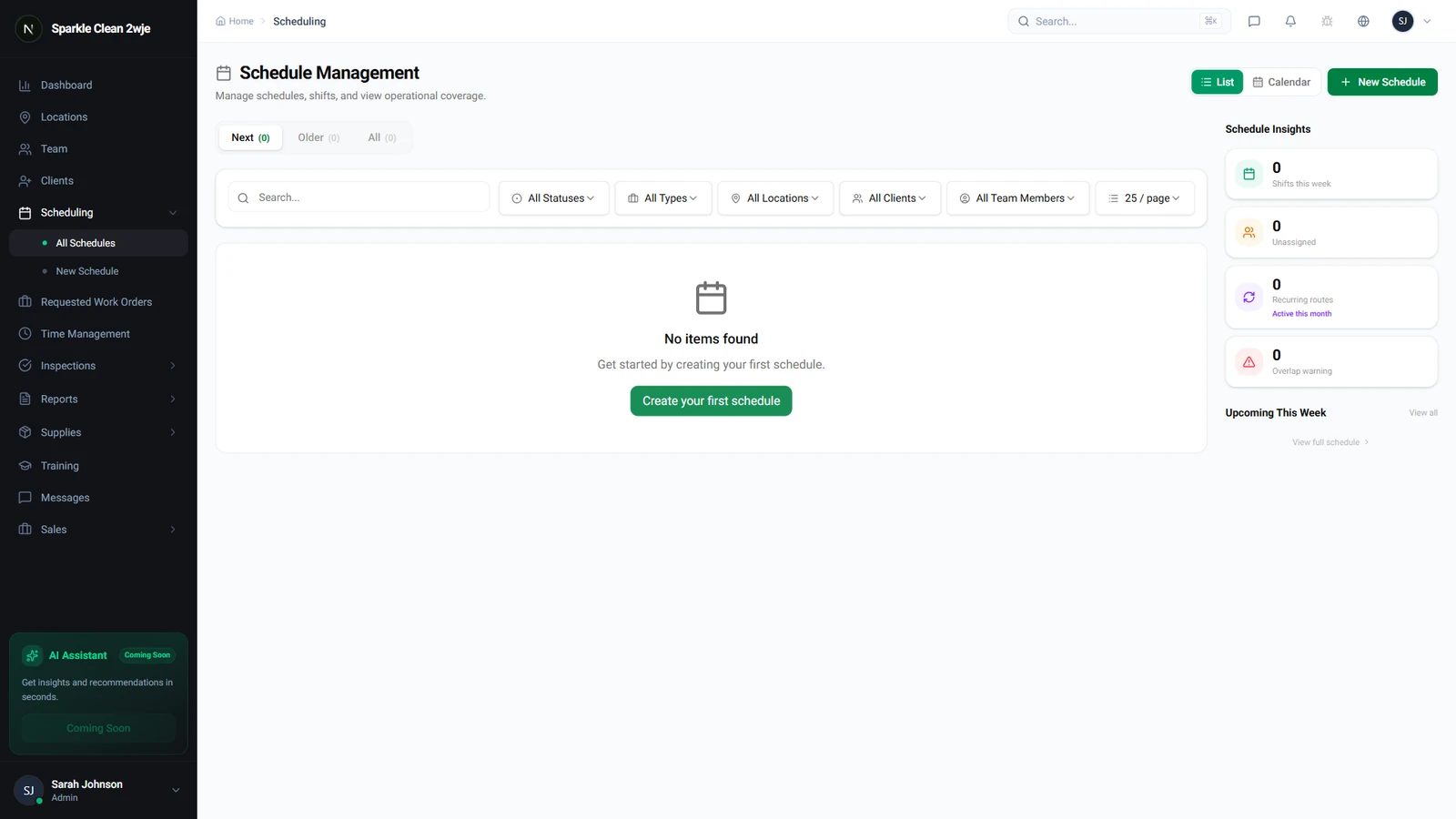
Once you have identified the shift, click on the ⋮ Más (More) menu and select Reprogramar. This will open a compact form where you can input the new date and time details for the shift.
Handling Conflicts and Confirmations
After you select your new time, the system automatically checks for potential conflicts with your assigned team members. If a conflict is detected, you will see a warning notification on the screen.
Once you are satisfied with the new time, click Confirmar. This action saves the update, and the team members involved are automatically notified of the change.
Getting Started with Your Schedules
Maintaining an accurate schedule is the foundation of reliable service. By using the built-in rescheduling features in CleanTrack360, you keep your team informed and your operations organized.
If you have any questions or encounter any issues while managing your shifts, you can reach out to our team at any time via the Support section in your dashboard. We are here to help you get the most out of your platform.