Professionalizing Your Cleaning Business Starts Here
In the commercial cleaning industry, your brand presence is built on the details. From the first proposal you send to the final report, every client interaction needs to look cohesive, professional, and reliable.
CleanTrack360 simplifies this by serving as the central hub for your business identity. When your profile is correctly configured, your information is automatically pulled into every document and portal your clients interact with.
The Challenge of Inconsistent Documentation
When you are managing a growing cleaning company, manually inputting contact details into every document is a drain on your time. Inconsistencies, like an outdated phone number on a proposal or an incorrect address on a service report, can impact your professional image.
Cleaning business owners often face these common friction points:
- Manual Errors: Typing company details repeatedly increases the risk of typos in contact info.
- Disconnected Branding: If your client portal doesn't match your official proposals, it can create confusion for property managers.
- Scheduling Conflicts: Misaligned timezones across different systems can lead to confusion regarding when cleaning shifts are scheduled to begin.
How to Configure Your Company Profile
Accessing Your Settings
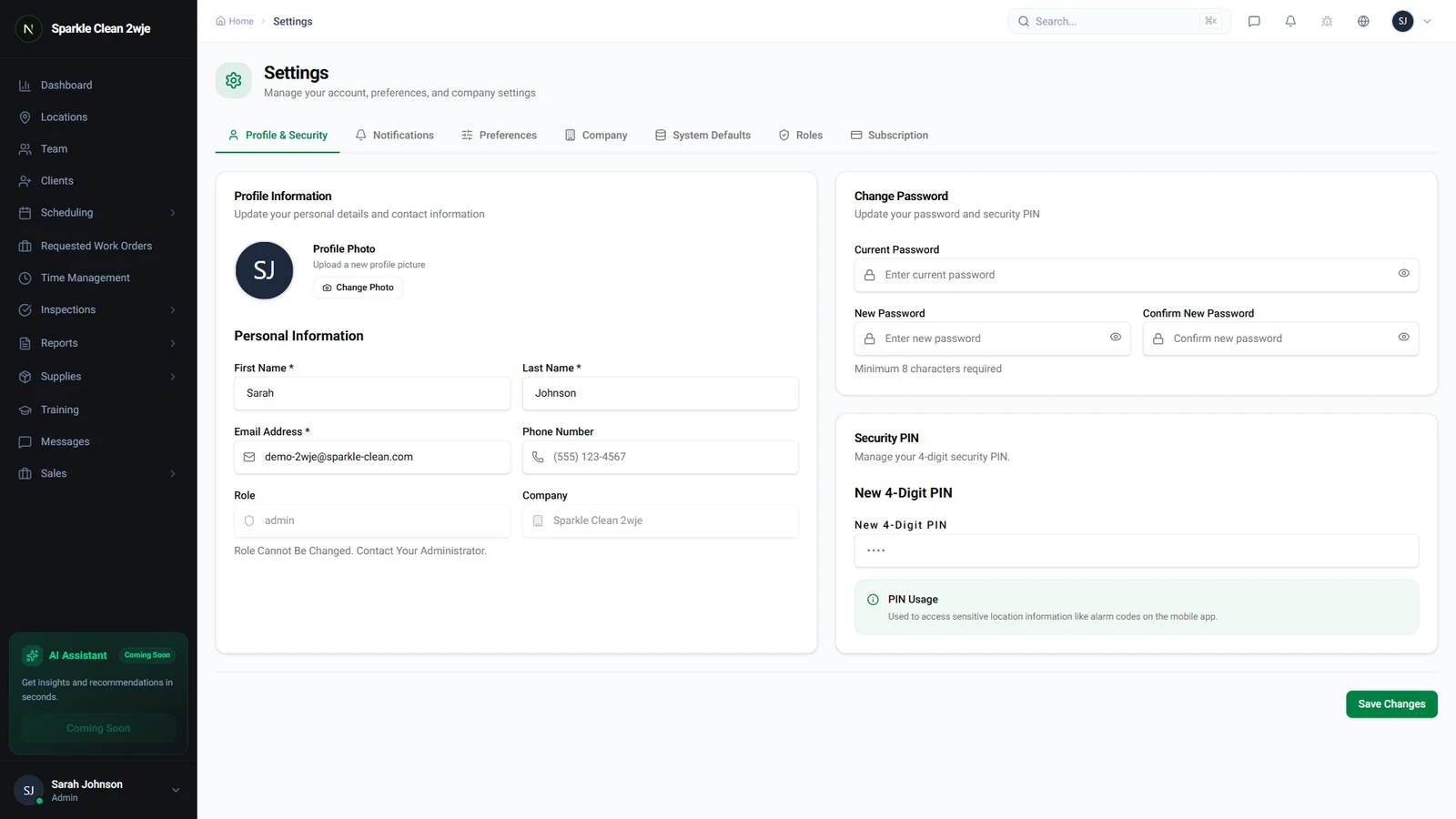
To begin, log into your CleanTrack360 dashboard. Navigate to the sidebar and click on the "Settings" menu.
The Company Profile section is displayed immediately upon entering this page. This is where you will define the core information that populates your client-facing tools.
Updating Your Business Information
Enter your business details into the provided fields. The system requires a Company Name and your operating Timezone, as these are critical for accurate scheduling and reporting.
- Company Name: The legal or display name used on all documents.
- Phone and Email: Your primary business contact points for clients.
- Address: Your business headquarters location.
- Website: Your company URL.
- Timezone: Essential for ensuring that shift scheduling and report timestamps are accurate.
Getting Started
Once you have entered your details, be sure to click "Save" to apply the changes across the platform. Once saved, your updated information will automatically appear in future proposals, reports, and your client portal.
If you encounter any issues while updating your information or have specific questions about these fields, feel free to reach out through the Support section located directly in your dashboard.