Establishing a Professional First Impression
When you run a commercial cleaning company, your reputation is built on every interaction you have with your clients. From the moment you send a proposal to the final delivery of a service report, every document serves as a reflection of your business's professionalism.
CleanTrack360 helps you manage these details by keeping your brand identity consistent across all your professional documentation. By centralizing your company information, you ensure that every client interaction is polished and recognizable.
The Importance of Brand Consistency
Managing the administrative side of a cleaning business can be chaotic, especially when you are jumping between different software tools or manual templates. When your brand identity isn't properly synced across your business tools, you face several common challenges:
- Disconnected Branding: If your proposals and reports don't carry your logo, clients may struggle to identify your paperwork immediately.
- Outdated Contact Information: Manually updating your phone number or address in every single document is a recipe for errors.
- Inconsistent Professionalism: Missing details, such as your hours of operation, can lead to communication gaps with your clients.
How to Configure Your Company Profile
Accessing Your Central Control Hub
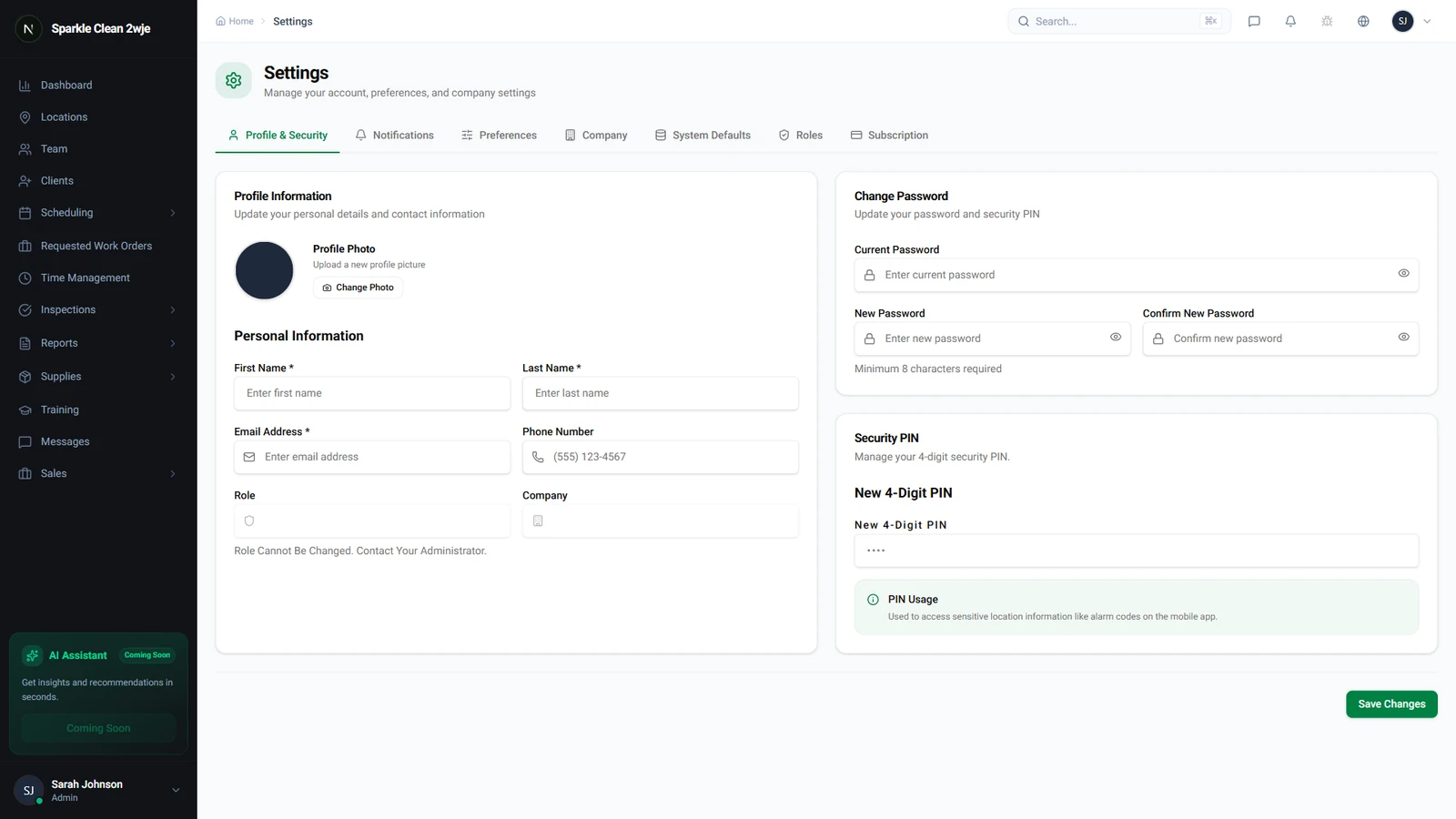
Your journey to a more organized business begins in the settings area. You can access this section by clicking on "Configurações" located in the sidebar of your CleanTrack360 dashboard.
Customizing Your Visual Identity
Once you are in the settings area, navigate to the "Company" tab. This is where you can upload your company logo, which will then automatically appear on your proposals, reports, and sidebar.
The system supports high-quality file formats including PNG, JPG, and SVG. Uploading a clear, high-resolution logo helps establish trust with your clients every time they view a document you have sent.
Defining Your Business Details
Accuracy is key when it comes to contact information. Within your company profile, ensure you have filled out your official phone number, physical address, website, and operating hours.
These details are automatically pulled by the system when generating documents for your clients. By keeping these up to date, you ensure that your customers always have the right information to reach you.
Getting Started Today
Setting up your profile is a quick process that pays off in long-term efficiency. By centralizing these details now, you save yourself from having to input them repeatedly in the future.
If you encounter any questions or need assistance during this setup phase, remember that you can always reach out through the Support section in your dashboard. Our team is ready to help you get the most out of your CleanTrack360 experience.