Clients
How to Create a Client
Add a new client to your account.
Last updated June 10, 2026
Clients represent the people or companies you provide cleaning services for. 🤝
1
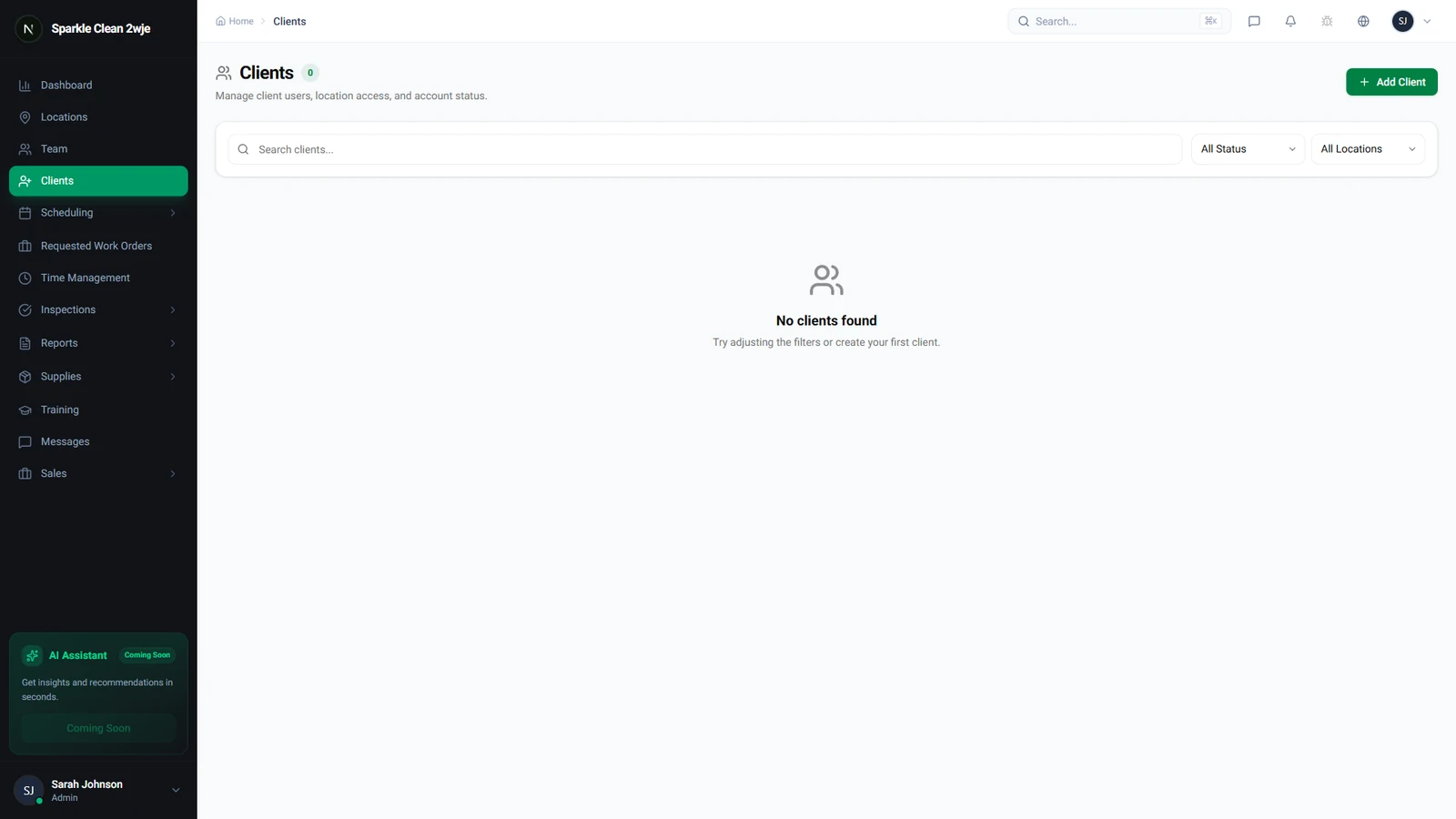
Open the Clients Module
Click Clients in the sidebar. You'll see all clients with their contact info and status.
2
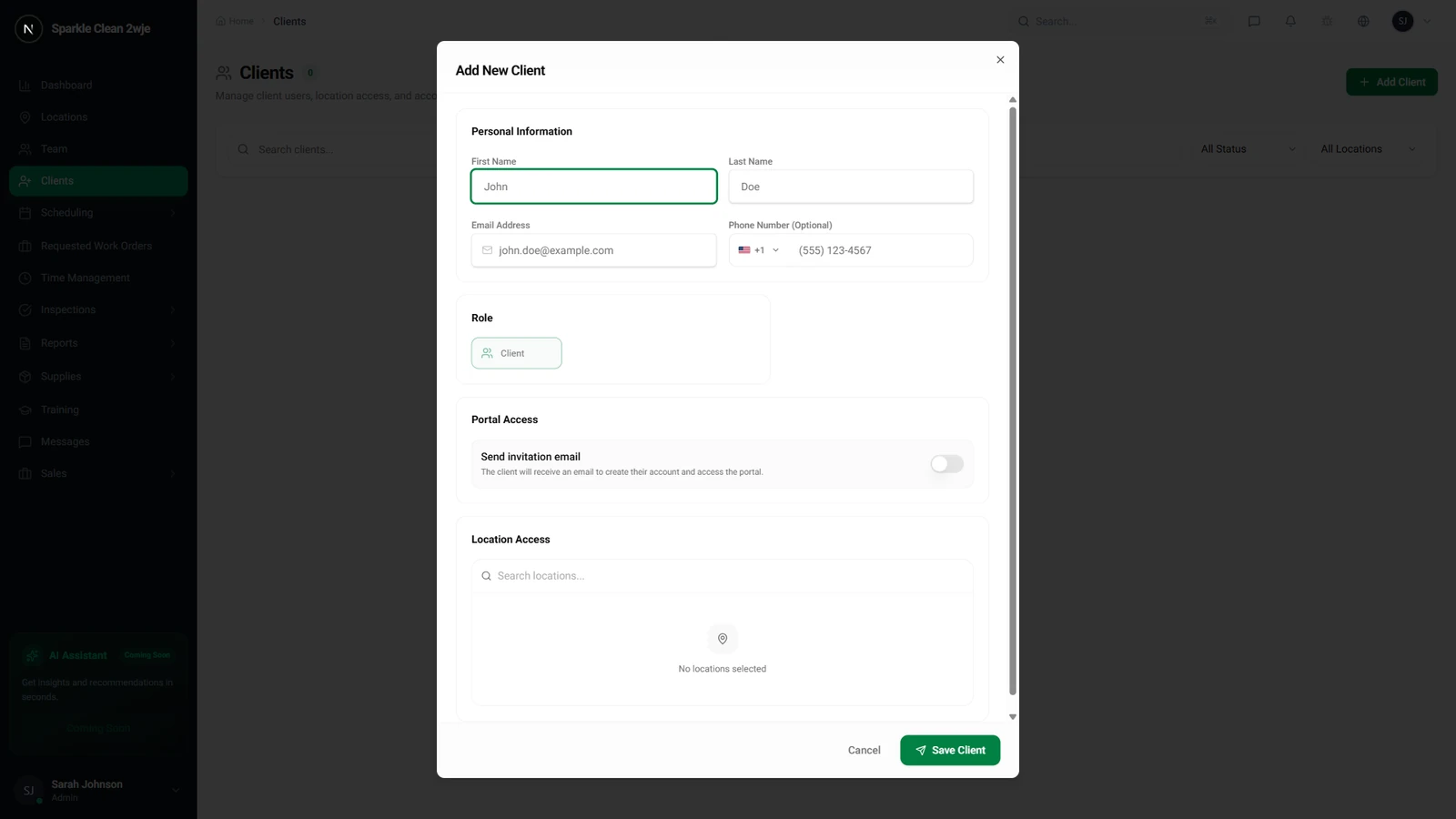
Open the Client Form
Click + Add Client. The creation form appears.
3
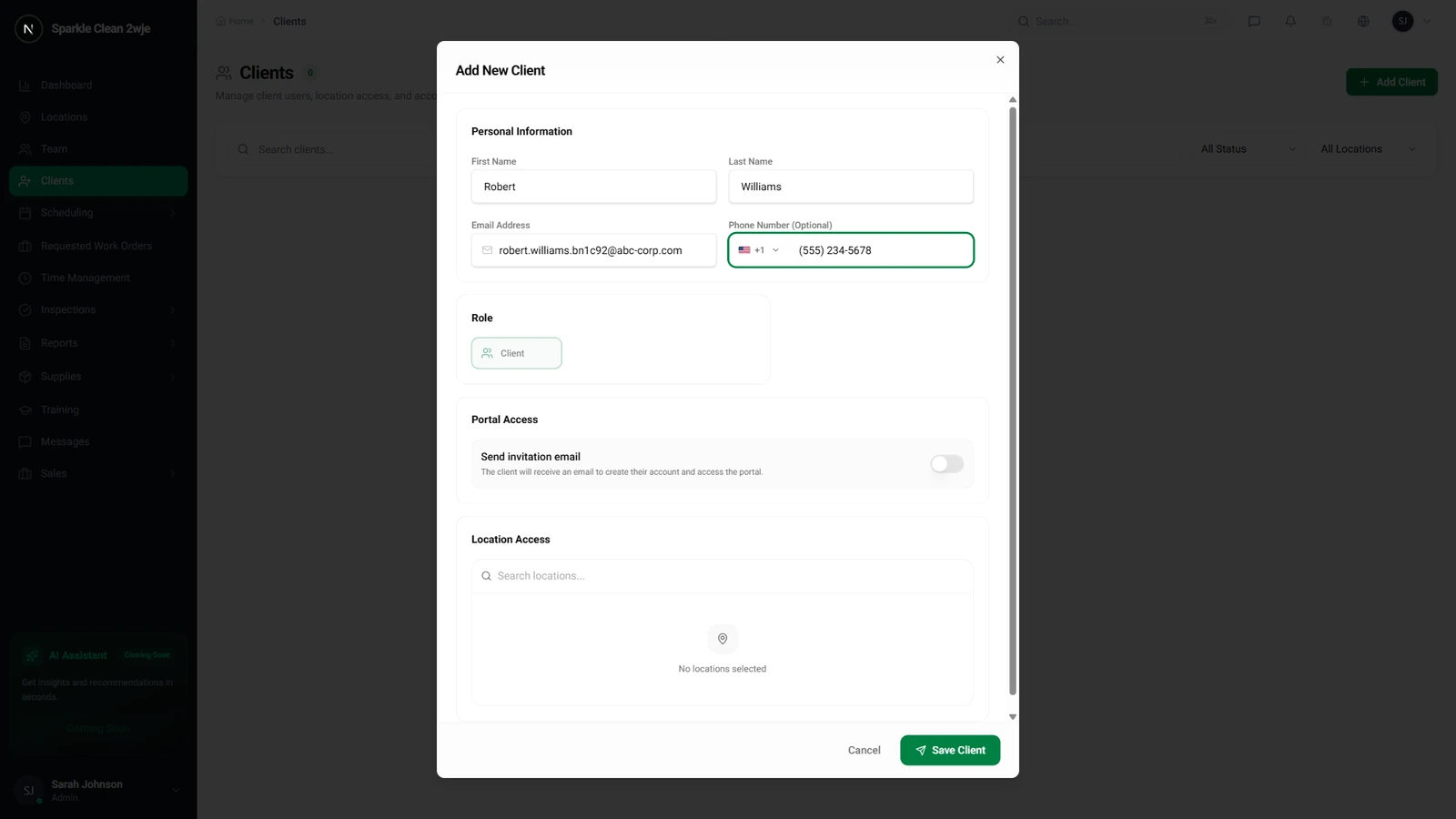
Fill in Client Details
Complete the form with the client's contact name, email, and telephone number.
📋 Form Fields
| Field | Required | Description |
|---|---|---|
| Company Name | ✅ Yes | Client's company name. e.g. "ABC Corporation" |
| Contact First Name | ✅ Yes | Primary contact's first name. e.g. "Robert" |
| Contact Last Name | ✅ Yes | Primary contact's last name. e.g. "Williams" |
| ✅ Yes | Used for portal invitations and report delivery. e.g. "robert@abc-corp.com" | |
| Phone | Optional | Contact phone. e.g. "(555) 234-5678" |
4
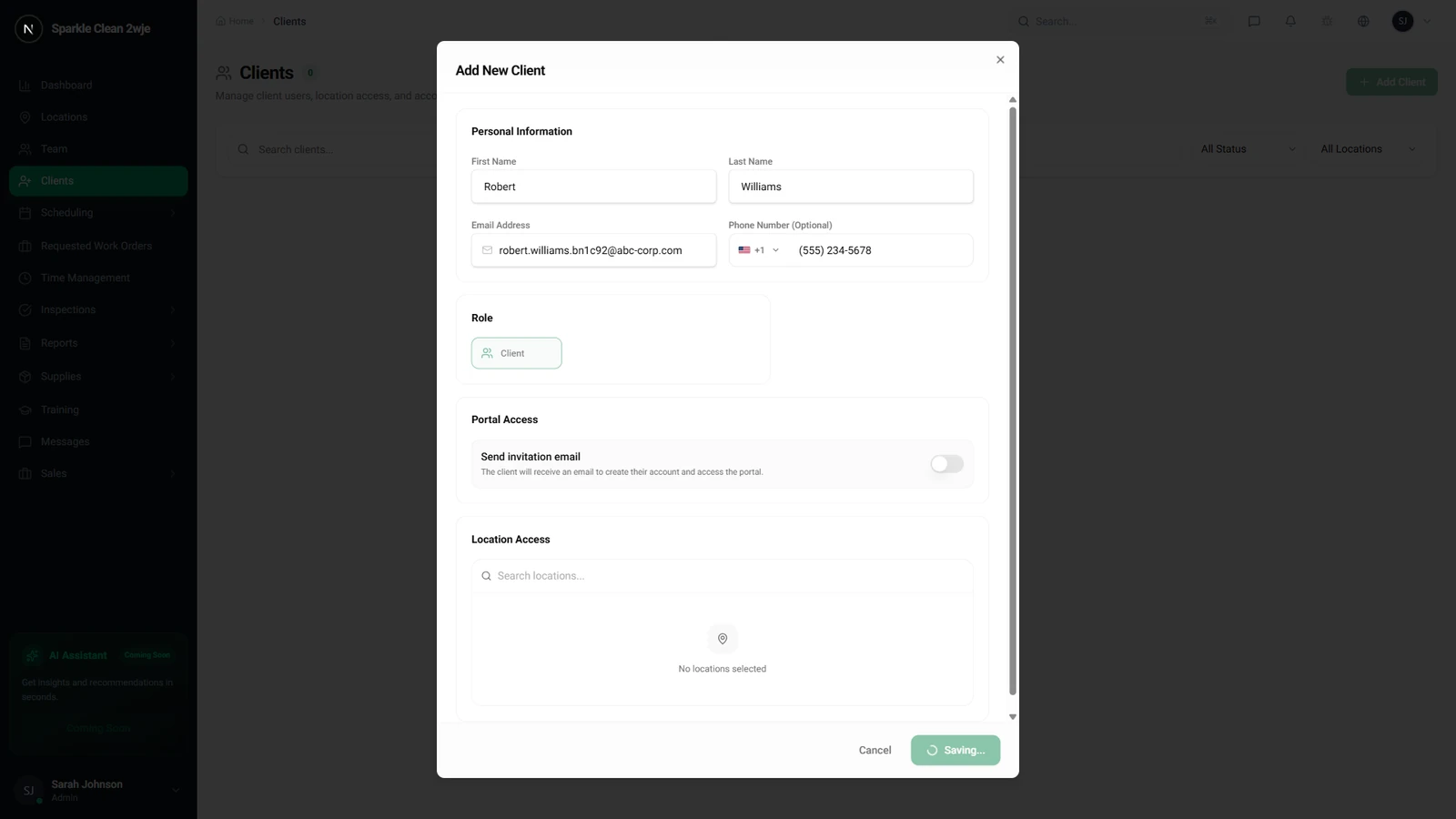
Save the Client
Click Save Client. The client is now registered and visible in the client directory.
ℹ️
The client is now ready to be linked to service locations or invited to the Client Portal.
🙌
Need help? If you have any questions or run into issues, reach out through the Support section in your dashboard.