Clients
Inviting Clients to the Client Portal
Give clients their own dashboard.
Last updated June 10, 2026
The Client Portal lets clients view reports, see schedules, and request work orders.
1
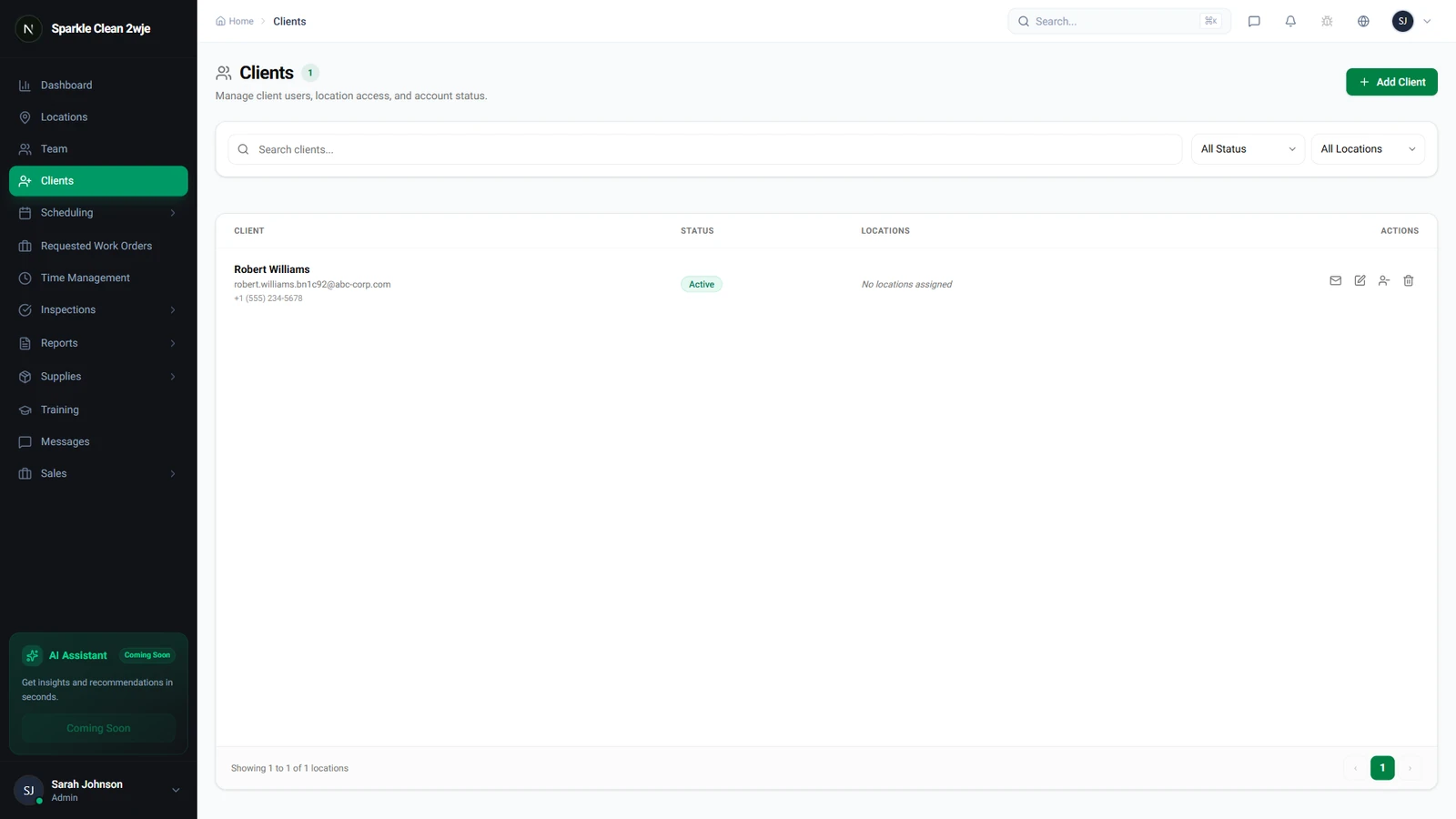
Clients with Portal Access
The Portal Status column shows which clients have been invited to the Client Portal.
2
Invite to Portal
Open a client → click Invite to Portal. An email with a setup link is sent to their email address.
ℹ️
The invitation includes your company branding.
3
Client Accepts
They click the link, create a password, and gain portal access. Status changes to "Active".
4
Manage Access
Revoke access anytime from the client detail page: Manage Access → Revoke.
⚠️
Important: Revoking immediately prevents the client from logging in.
🙌
Need help? If you have any questions or run into issues, reach out through the Support section in your dashboard.