Getting Started
Adding Your First Client Location
Create your first service location in CleanTrack360.
Last updated August 1, 2026
Locations are the foundation of your operations in CleanTrack360. Each location represents a client site where your team provides cleaning services. Let's add your first one! 📍
1
Go to the Locations Module
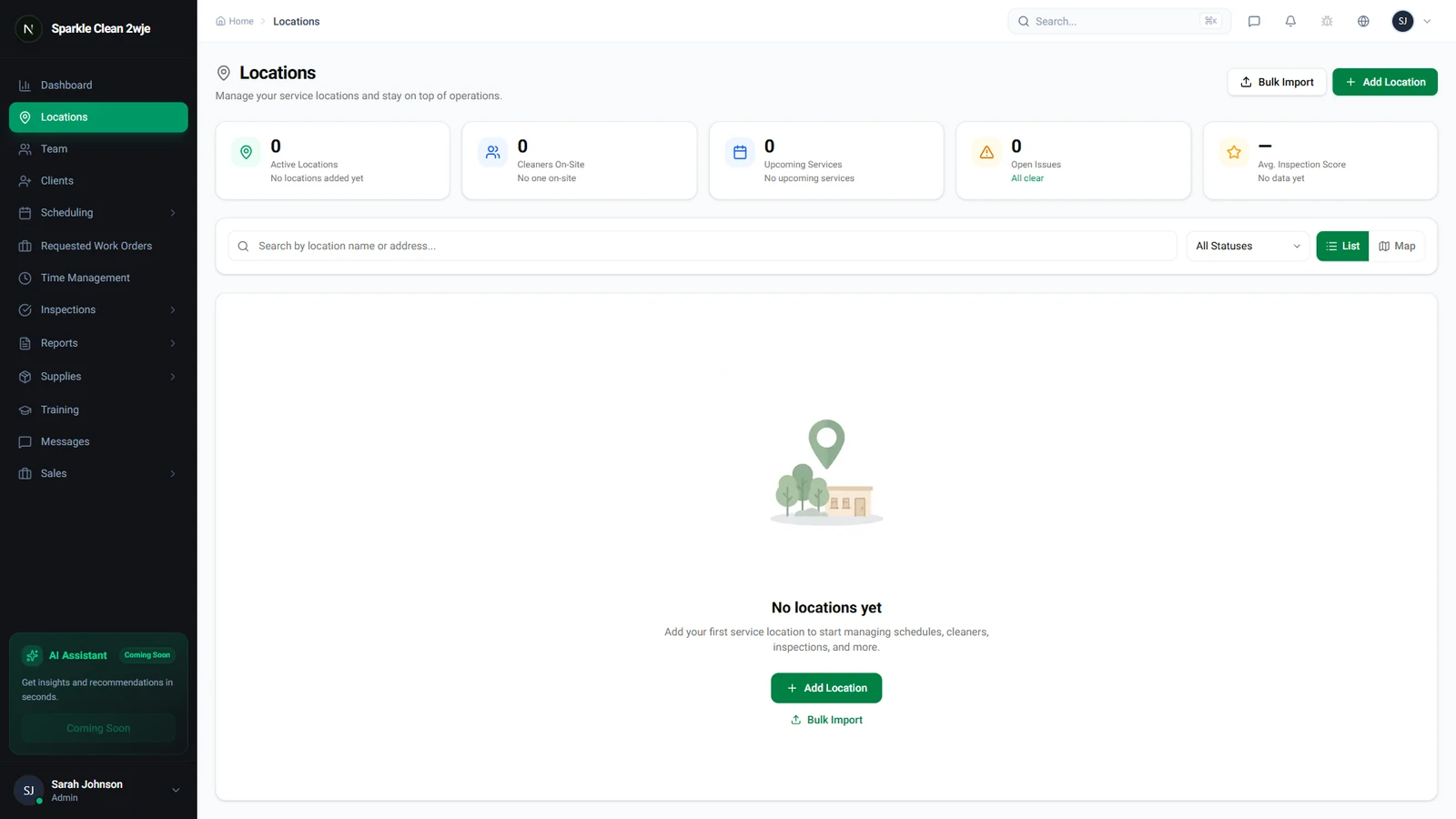
Click Locations in the sidebar. As a fresh account, this page is empty, the perfect blank canvas for your first service location!
2
Click "Add Location"
Click the Add Location button. A wizard will guide you through the setup process step by step.
3
Enter Location Details
Fill in the location name, address, contact information, and any special access instructions for your cleaning team.
💡
Pro tip: Be specific with access instructions. Your team will see these before every shift!
4
Set Up Geofencing (Optional)
Enable GPS geofencing by drawing a boundary around the location on the map. This ensures your team can only clock in when they're physically at the site.
ℹ️
Geofencing is optional but highly recommended for accurate time tracking and accountability.
🙌
Need help? If you have any questions or run into issues, reach out through the Support section in your dashboard.