Getting Started
Inviting Your First Team Members
Add team members so they can start using CleanTrack360.
Last updated August 1, 2026
CleanTrack360 is built for teams. Let's invite your first team members so they can access their schedules, clock in, and communicate. 👥
1
Go to the Team Module
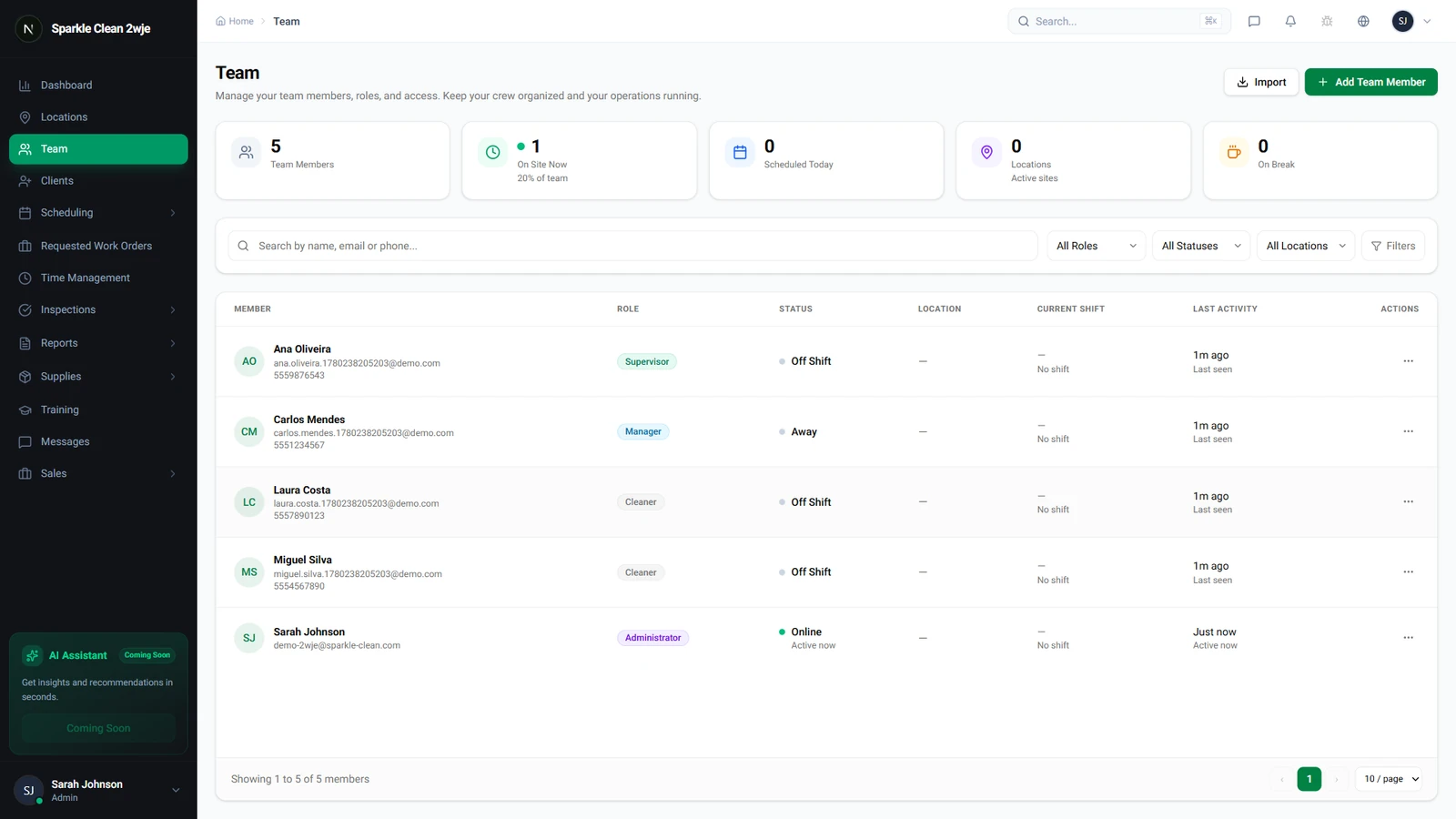
Click Team in the sidebar to open the team management page. As a new account, this will be empty, ready for your first team member.
2
Click "Add Team Member"
Click the Add Team Member button in the top right corner. A form will appear where you can enter their details.
3
Fill in Team Member Details
Enter their first name, last name, email, and role. The role determines what they can access, Admin, Manager, Supervisor, or Cleaner.
ℹ️
Cleaners get mobile access to view their schedules, clock in/out, and access training. Managers can manage schedules, team, and view reports.
4
Send the Invitation
Click Send Invitation. They'll receive an email with a link to set their password and access the platform.
💡
Pro tip: You can also invite multiple team members at once using the CSV batch import feature!
🙌
Need help? If you have any questions or run into issues, reach out through the Support section in your dashboard.