Settings
Configuring Notification Rules
Control what triggers notifications.
Last updated August 1, 2026
Fine-tune which events notify whom and how they're delivered.
1
Notification Settings
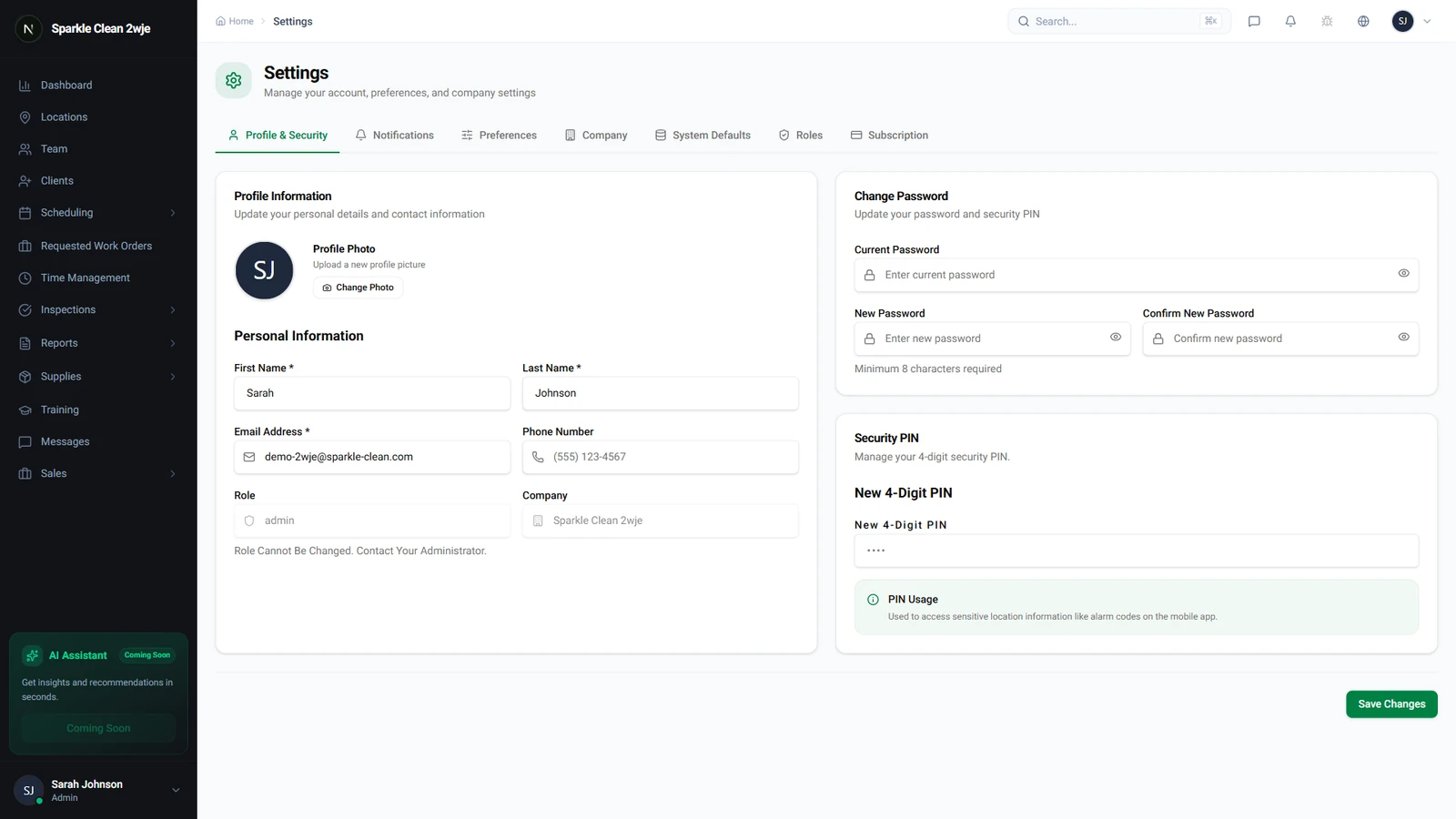
In Settings, navigate to Notifications.
2
Configure Rules
Set which events trigger notifications and how they're delivered:
📋 Form Fields
| Field | Required | Description |
|---|---|---|
| Schedule Reminders | Optional | Notify team before shifts start. e.g. "30 min before" |
| Clock-in Alerts | Optional | Alert managers when someone clocks in late. e.g. "If >15 min late" |
| Supply Requests | Optional | Notify approvers of new requests. e.g. "Instant notification" |
| Inspection Scores | Optional | Alert when scores drop below threshold. e.g. "Below 75%" |
| Work Orders | Optional | Notify when clients submit requests. e.g. "Instant + email" |
3
Delivery Channels
Choose per-notification: In-app, Email, SMS, or all three.
💡
Pro tip: Use SMS for urgent notifications only, too many SMS notifications get ignored.
🙌
Need help? If you have any questions or run into issues, reach out through the Support section in your dashboard.