Team Management
How to Add a Team Member
Step-by-step guide to adding a new team member.
Last updated June 10, 2026
Each team member gets their own login, role-based permissions, and can be assigned to locations and schedules. 👥
1
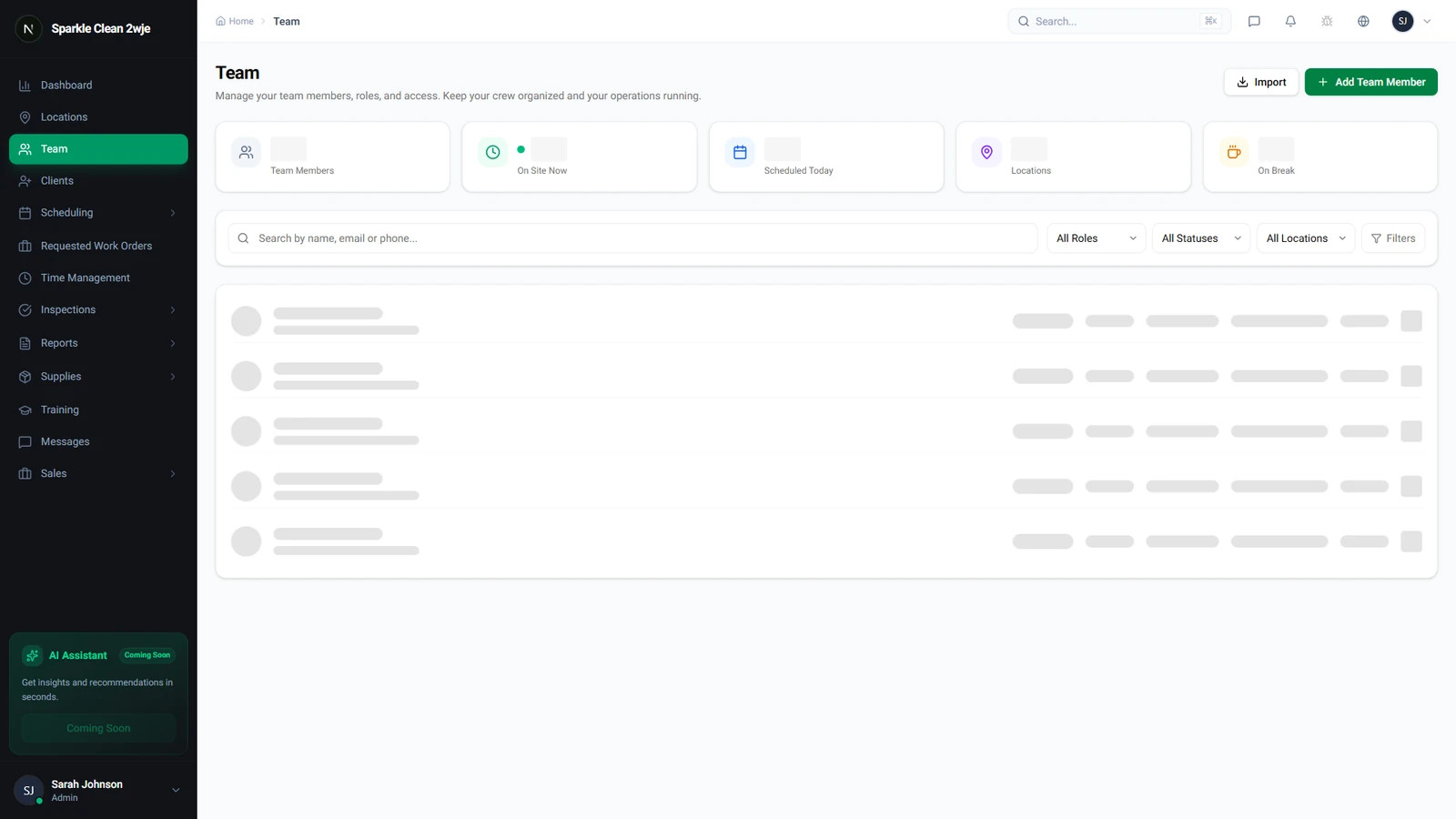
Open the Team Module
Click Team in the sidebar. All team members are listed with their roles, status, and locations.
2
Open the Add Team Member Form
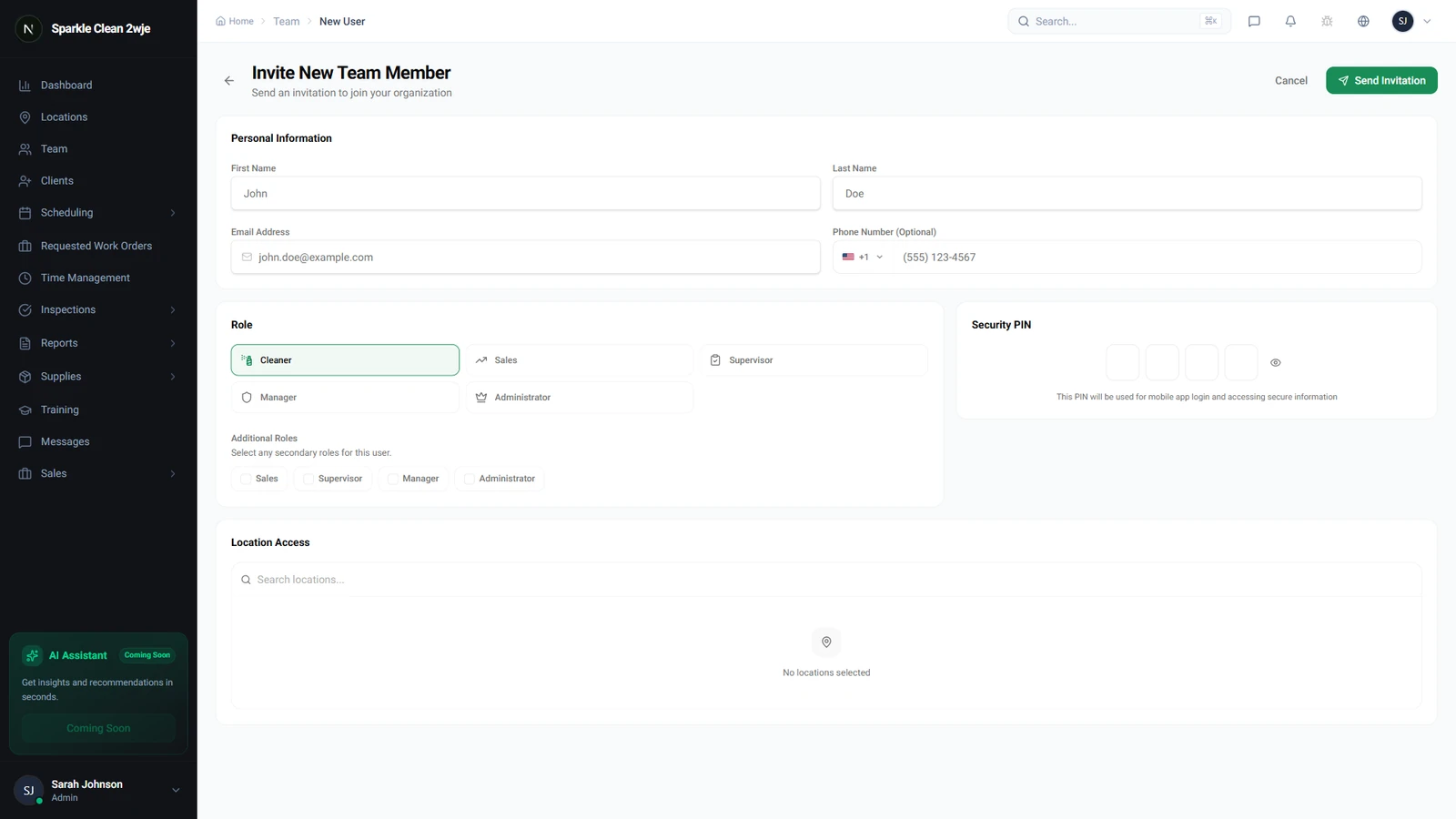
Click + Add Team Member. The form appears with fields for personal info, role, and contact details.
3
Fill in Personal Information
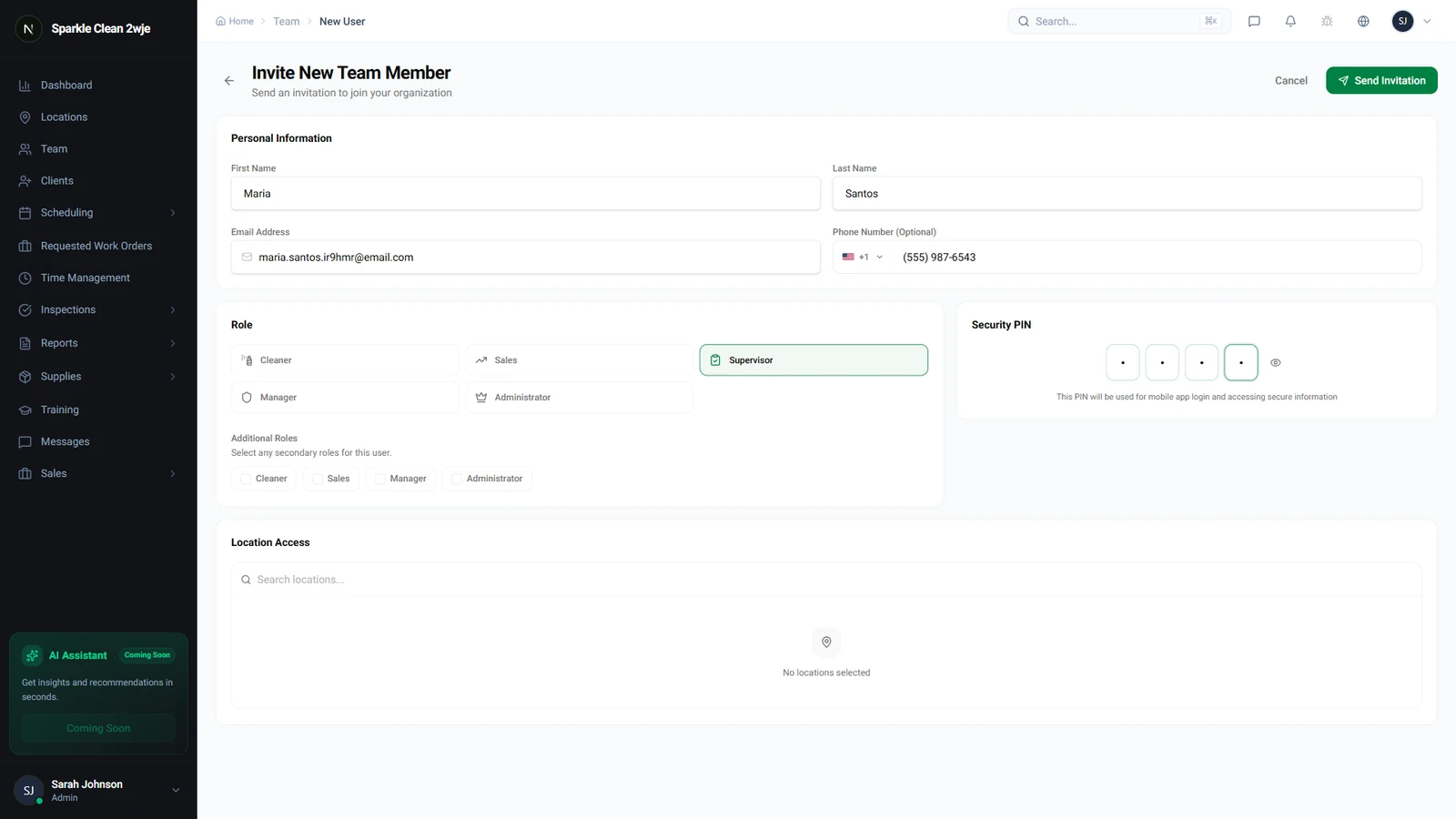
Enter the team member's details, choose their primary role, and set their unique security PIN.
📋 Form Fields
| Field | Required | Description |
|---|---|---|
| First Name | ✅ Yes | Team member's first name. e.g. "Maria" |
| Last Name | ✅ Yes | Last name. e.g. "Santos" |
| ✅ Yes | Used for login and notifications. Must be unique. e.g. "maria@email.com" | |
| Phone | Optional | Mobile number for SMS notifications. e.g. "(555) 987-6543" |
| Role | ✅ Yes | Determines permissions. See "Roles & Permissions" article. e.g. "Supervisor" |
| Security PIN | ✅ Yes | 4-digit PIN used to unlock location access details on-site. e.g. "1234" |
4
Save & Send Invitation
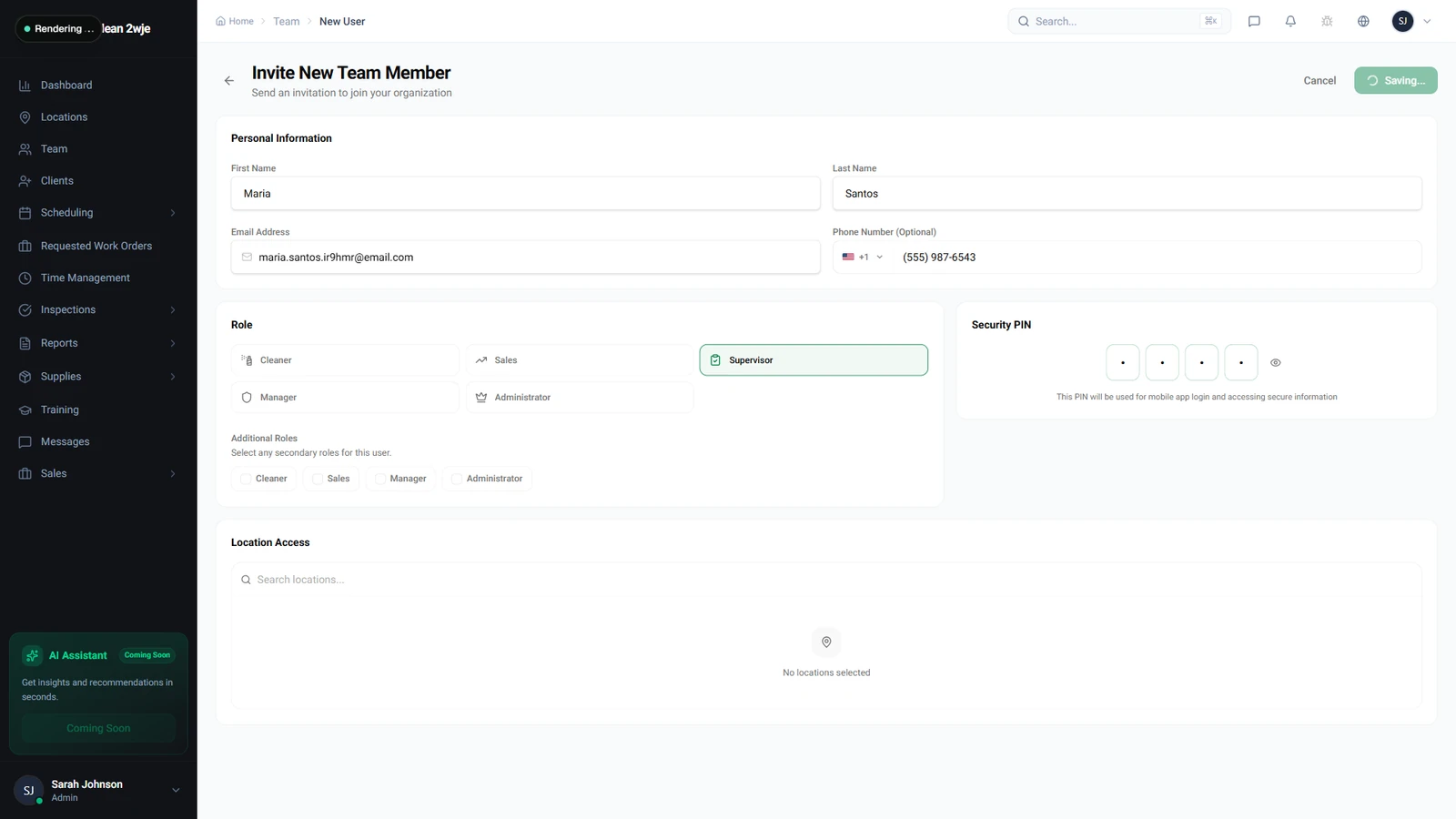
Click Send Invitation. The team member will receive an email to accept and set up their account.
ℹ️
The new member will appear as Pending until they accept the invitation.
🙌
Need help? If you have any questions or run into issues, reach out through the Support section in your dashboard.