Team Management
How to Deactivate a Team Member
Remove access while preserving their data.
Last updated June 10, 2026
When a team member leaves, deactivate instead of deleting to preserve their history.
1
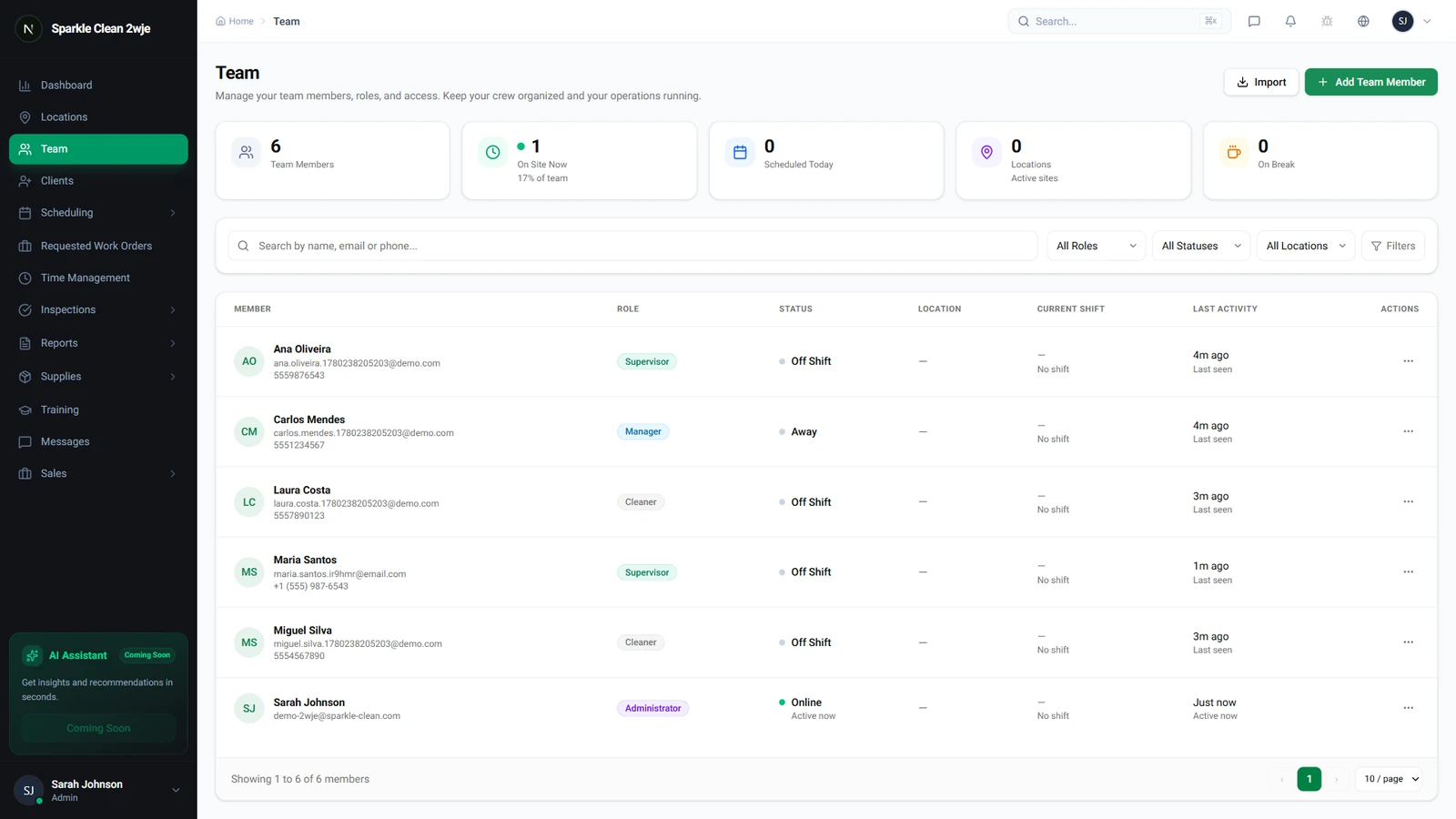
Find the Team Member to Deactivate
Go to Team and click the member you want to deactivate.
2
Click Deactivate
Click ⋮ More → Deactivate Member and confirm.
⚠️
Important: This immediately revokes login access. Future shifts assigned to them need reassignment.
3
What Happens
- Cannot log in
- Removed from future schedules
- Historical data preserved
- No longer counts toward user limit
ℹ️
Reactivate anytime from the same settings menu.
🙌
Need help? If you have any questions or run into issues, reach out through the Support section in your dashboard.