Team Management
Viewing & Managing Time Tracking Records
Review, approve, and export time entries.
Last updated June 10, 2026
Time Management is where you review clock-in/out records, approve for payroll, and flag anomalies. ⏱️
1
Open Time Management
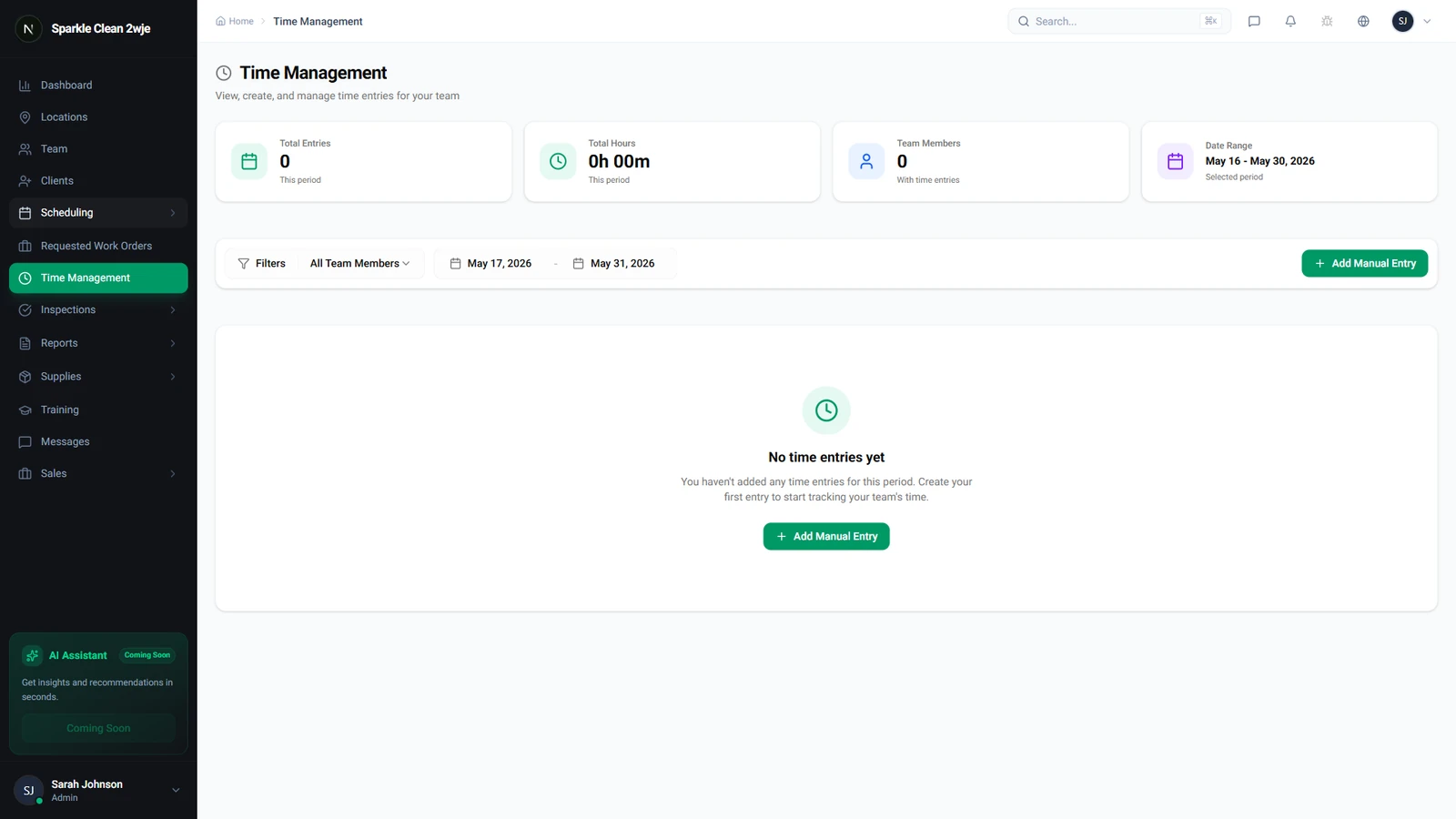
Click Time Management in the sidebar. All time entries are listed with who, where, when, and duration. Entries from your team's recent shifts appear here automatically.
2
Filter Entries
Filter by date range, team member, location, or status (Approved/Pending/Flagged).
💡
Pro tip: Filter by "Pending" to find entries needing approval.
3
Review & Approve
Click any entry to see: clock in/out times, total hours, GPS coordinates, and geofence status. Approve valid entries or flag suspicious ones.
4
Manual Entries
Need to add a missed clock-in? Click + Manual Entry and fill in the team member, location, times, and reason.
ℹ️
Manual entries are marked as "Manual" so you can distinguish them from GPS clock-ins.
5
Export for Payroll
Click Export to download approved entries as CSV for payroll.
ℹ️
Only approved entries are included in exports.
🙌
Need help? If you have any questions or run into issues, reach out through the Support section in your dashboard.