Locations
Linking Supplies to a Location
Track which supplies are needed at each location.
Last updated June 10, 2026
Link supply items to locations so your team knows what should be on-site.
1
Open a Location to Manage Supplies
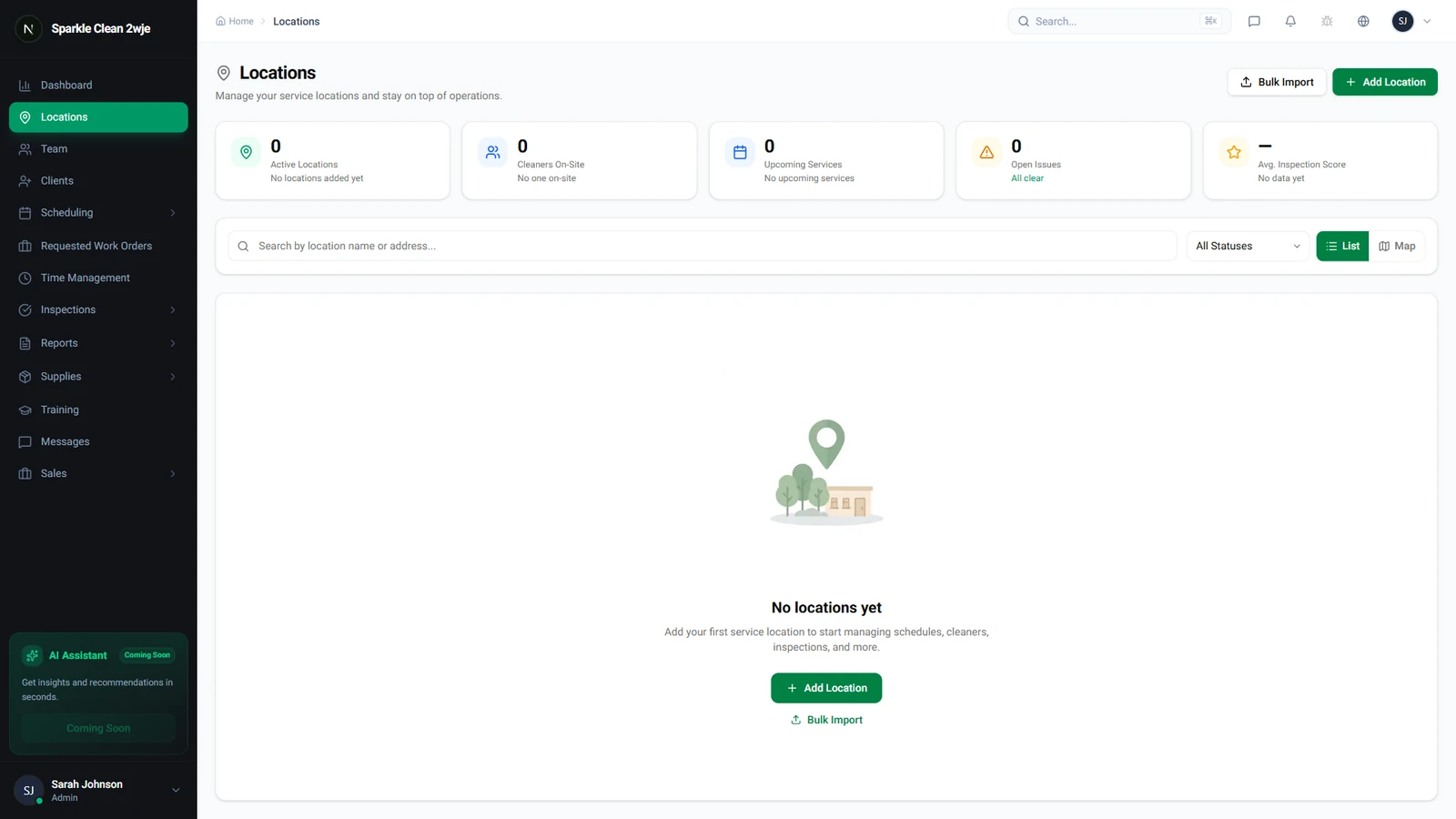
Go to Locations and click the location where you want to manage supplies.
2
Go to Supplies Tab
Click the Supplies tab on the location detail page.
3
Link Supply Items
Click Add Supplies. Select items and set quantities:
📋 Form Fields
| Field | Required | Description |
|---|---|---|
| Supply Item | ✅ Yes | Select from your catalog e.g. "All-Purpose Cleaner" |
| Required Qty | ✅ Yes | How much to stock here e.g. "5 bottles" |
| Reorder Alert | Optional | Alert when stock drops below this e.g. "2 bottles" |
4
Save
Click Save. Your team can see what supplies should be at this location.
💡
Pro tip: Set reorder thresholds for automatic low-stock alerts.
🙌
Need help? If you have any questions or run into issues, reach out through the Support section in your dashboard.