Locations
Setting Up GPS Geofencing
Create a GPS boundary for verified clock-ins.
Last updated June 10, 2026
GPS geofencing creates an invisible boundary around your location for verified clock-ins. 🗺️
1
Open a Location for Geofencing
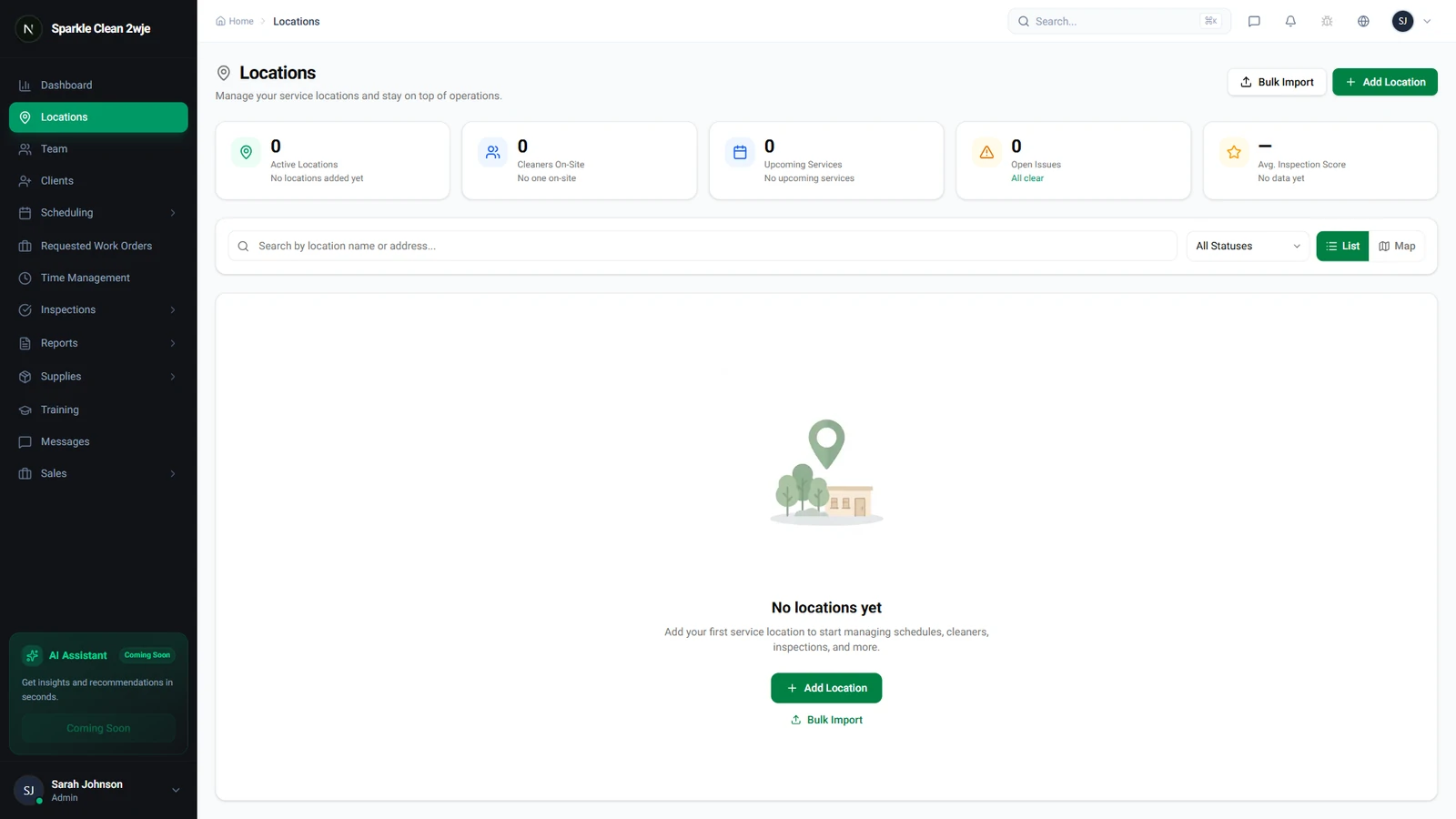
Go to Locations and click the location where you want to set up GPS geofencing.
2
Find the Geofence Section
On the location detail page, look for Geofencing or GPS Boundary. You'll see a map centered on the location address.
3
Configure the Boundary
Set the geofence parameters:
💡
Pro tip: Set radius to 100-200m to account for GPS accuracy (±15m).
📋 Form Fields
| Field | Required | Description |
|---|---|---|
| Geofence Radius | ✅ Yes | Radius (in meters) around the center point. e.g. "150 meters" |
| Center Point | ✅ Yes | Auto-set from address. Drag the pin to adjust. e.g. "Drag to building entrance" |
4
Save & Test
Click Save Geofence. Test by having a team member clock in from inside/outside.
ℹ️
Team members outside the geofence see a notification explaining they're too far from the location.
🙌
Need help? If you have any questions or run into issues, reach out through the Support section in your dashboard.