Locations
How to Deactivate a Location
Deactivate a location while preserving its history.
Last updated June 10, 2026
When you stop servicing a location, deactivate it instead of deleting. This preserves all historical data.
1
Find the Location
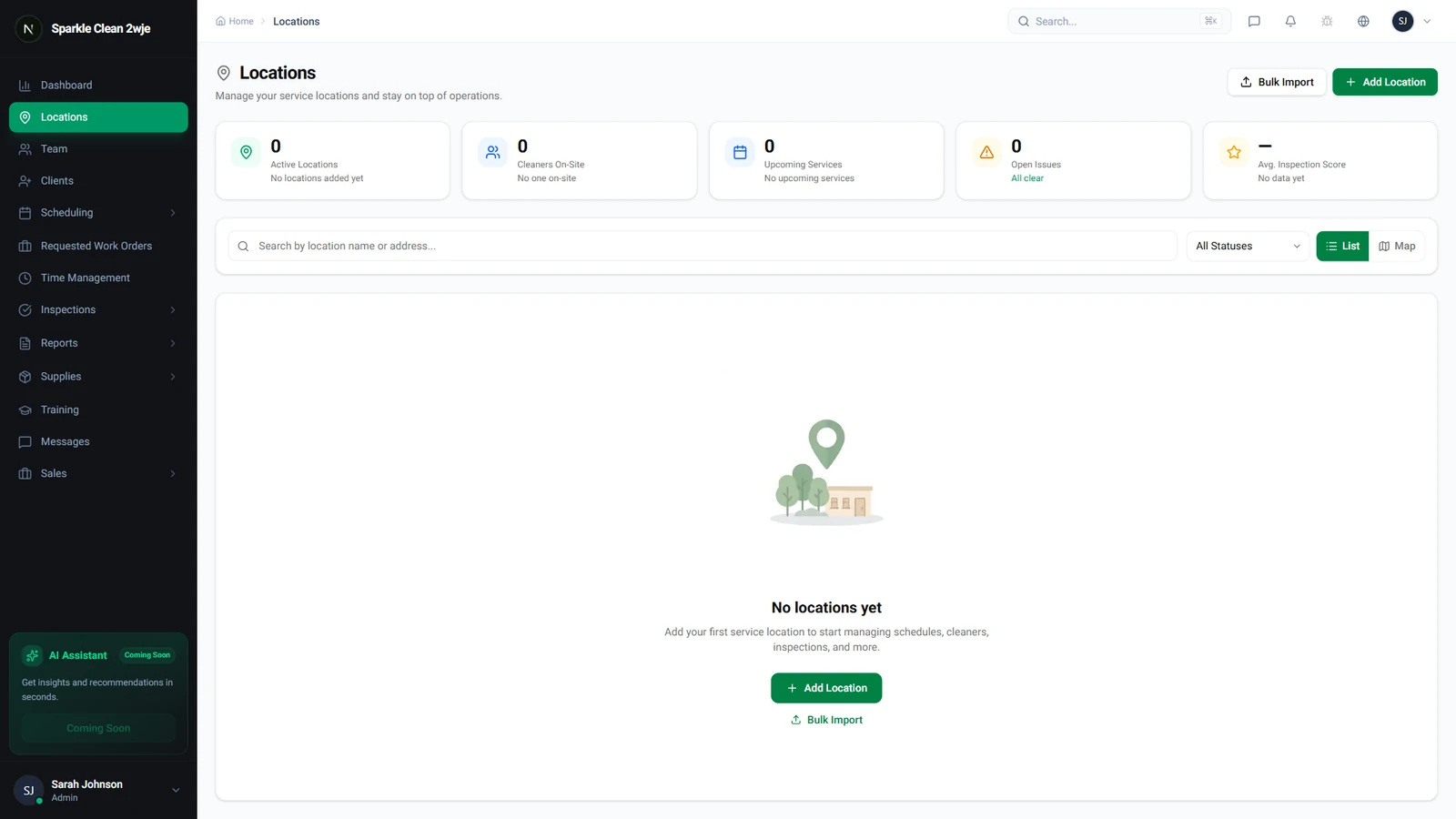
Navigate to Locations and find the location you want to deactivate.
2
Open Location Settings
Click the location, then click the ⋮ More menu or Settings tab.
3
Deactivate
Click Deactivate Location and confirm.
⚠️
Important: This cancels any future scheduled shifts at this location. Notify your team and client beforehand.
4
Reactivate If Needed
You can reactivate from the same menu. Use the "Show Inactive" filter to find deactivated locations.
ℹ️
All historical data (reports, inspections, schedules) is preserved when deactivating.
🙌
Need help? If you have any questions or run into issues, reach out through the Support section in your dashboard.