Locations
How to Edit a Location
Update location details, contacts, or access instructions.
Last updated June 10, 2026
Need to update a location's info? Edit any field at any time without affecting existing schedules.
1
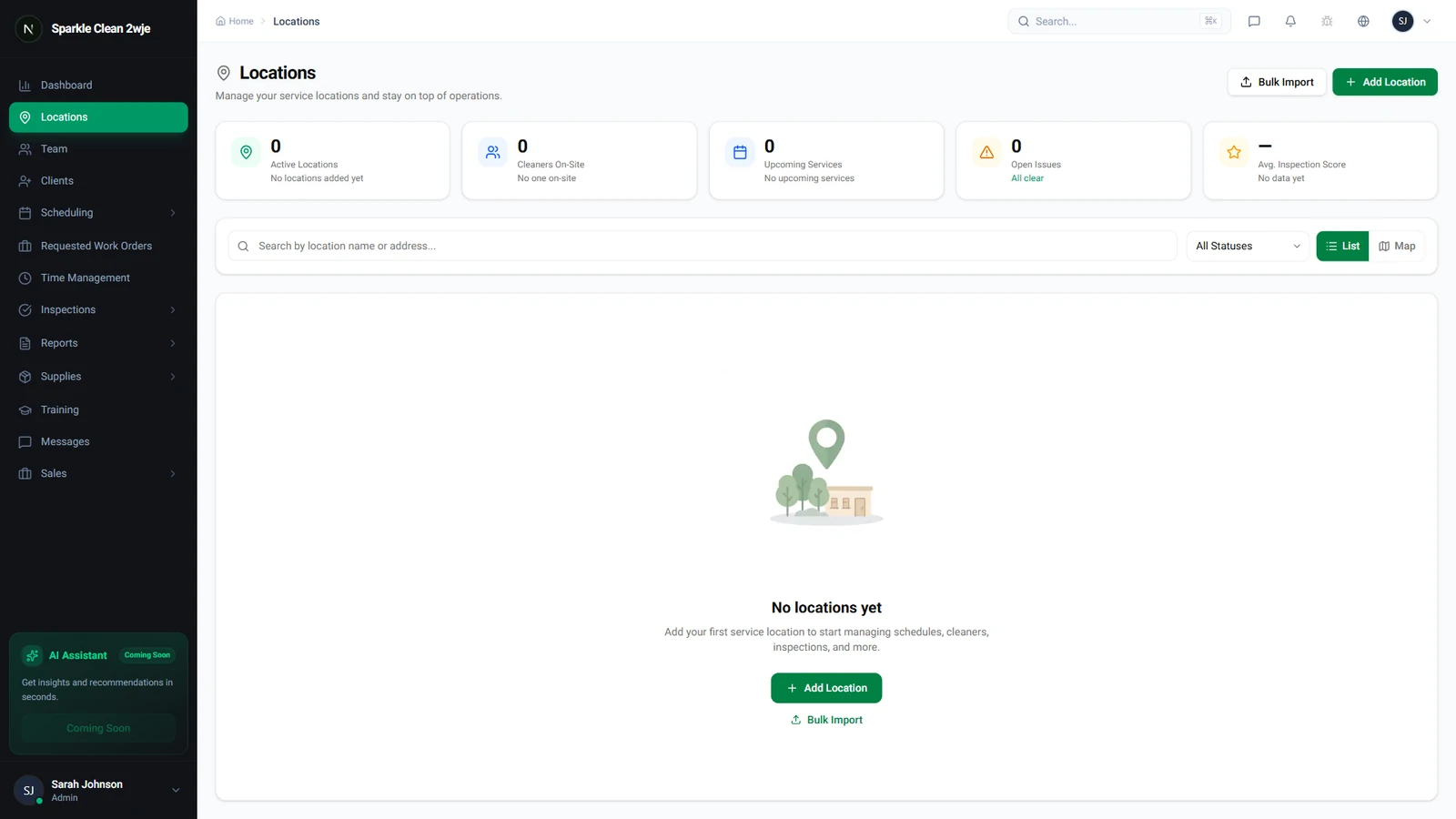
Find the Location to Edit
Go to Locations. Use the search bar or scroll to find the location you want to edit.
2
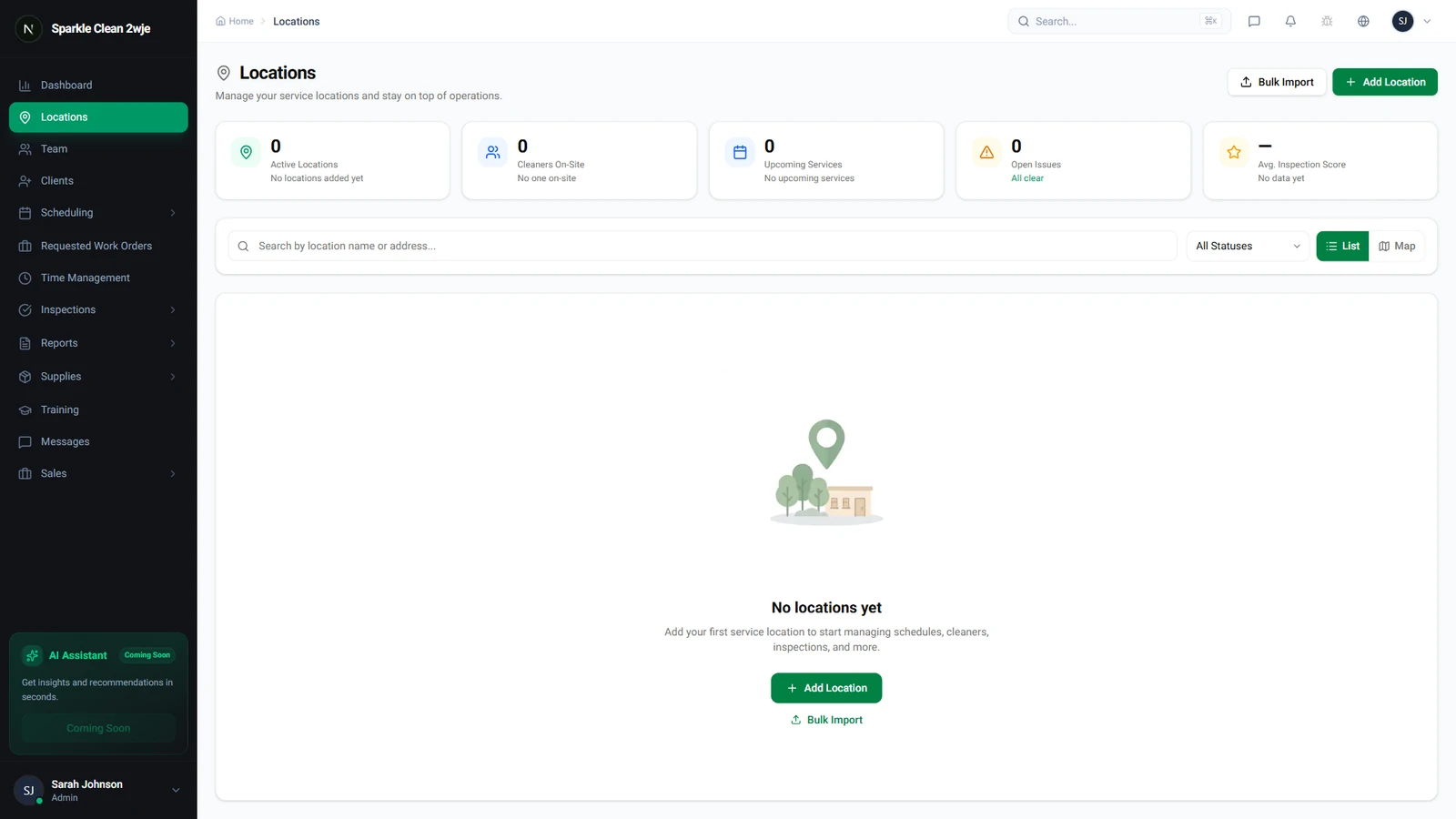
Open Location Details
Click the location name to open its detail page with all current information.
3
Click Edit
Click the Edit button (pencil icon). The form opens with current values pre-filled.
4
Update Fields
Modify any fields: name, address, contacts, access instructions, or notes.
ℹ️
Changes take effect immediately. Your team sees updated info on their next shift.
5
Save Changes
Click Save.
💡
Pro tip: If you change the address, update the GPS geofence boundary too.
🙌
Need help? If you have any questions or run into issues, reach out through the Support section in your dashboard.