Locations
Batch Importing Locations from CSV
Import multiple locations at once from a spreadsheet.
Last updated June 10, 2026
Have many locations? Import them all at once from a CSV file.
1
Open the Import Option
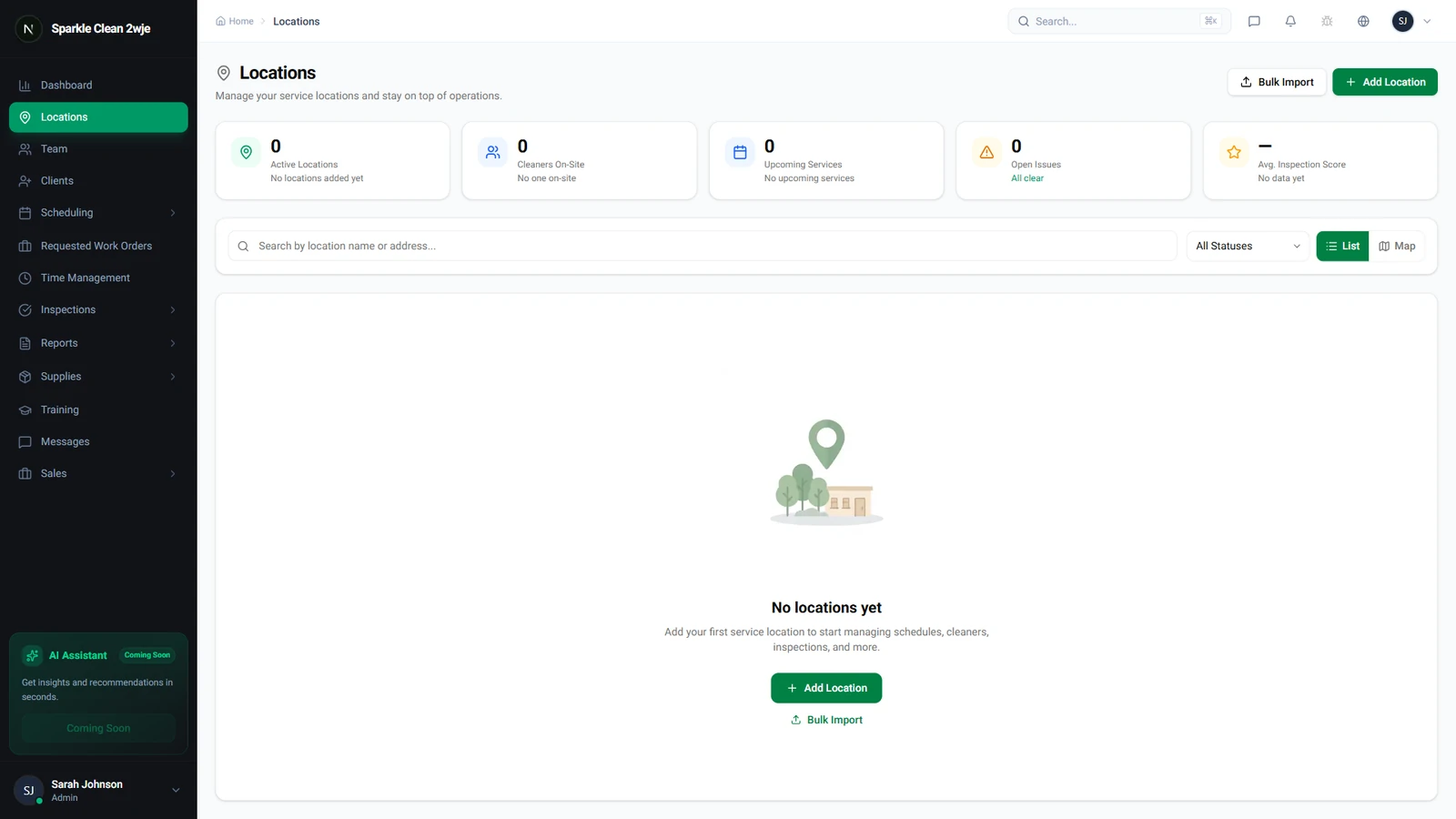
Go to Locations and look for the Import or Batch Import button.
2
Download CSV Template
Click Import and download the CSV template with pre-filled column headers.
3
Fill Your Data
Complete one row per location:
⚠️
Important: Save CSV as UTF-8 encoding to preserve special characters.
📋 Form Fields
| Field | Required | Description |
|---|---|---|
| name | ✅ Yes | Location name e.g. "Downtown Office" |
| address | ✅ Yes | Full street address e.g. "123 Main St, NYC" |
| contact_name | Optional | On-site contact e.g. "John Smith" |
| contact_phone | Optional | Contact phone e.g. "555-0123" |
| contact_email | Optional | Contact email e.g. "john@co.com" |
| access_instructions | Optional | Entry instructions e.g. "Side door, code 1234" |
4
Upload & Confirm
Upload the CSV, review the preview for errors (marked in red), then click Import All.
ℹ️
Duplicate location names are flagged. Import won't overwrite existing locations.
🙌
Need help? If you have any questions or run into issues, reach out through the Support section in your dashboard.