Scheduling
How to Cancel a Schedule
Cancel a shift and notify the team.
Last updated June 10, 2026
Sometimes shifts need to be cancelled. Here's how to do it properly.
1
Find the Shift to Cancel
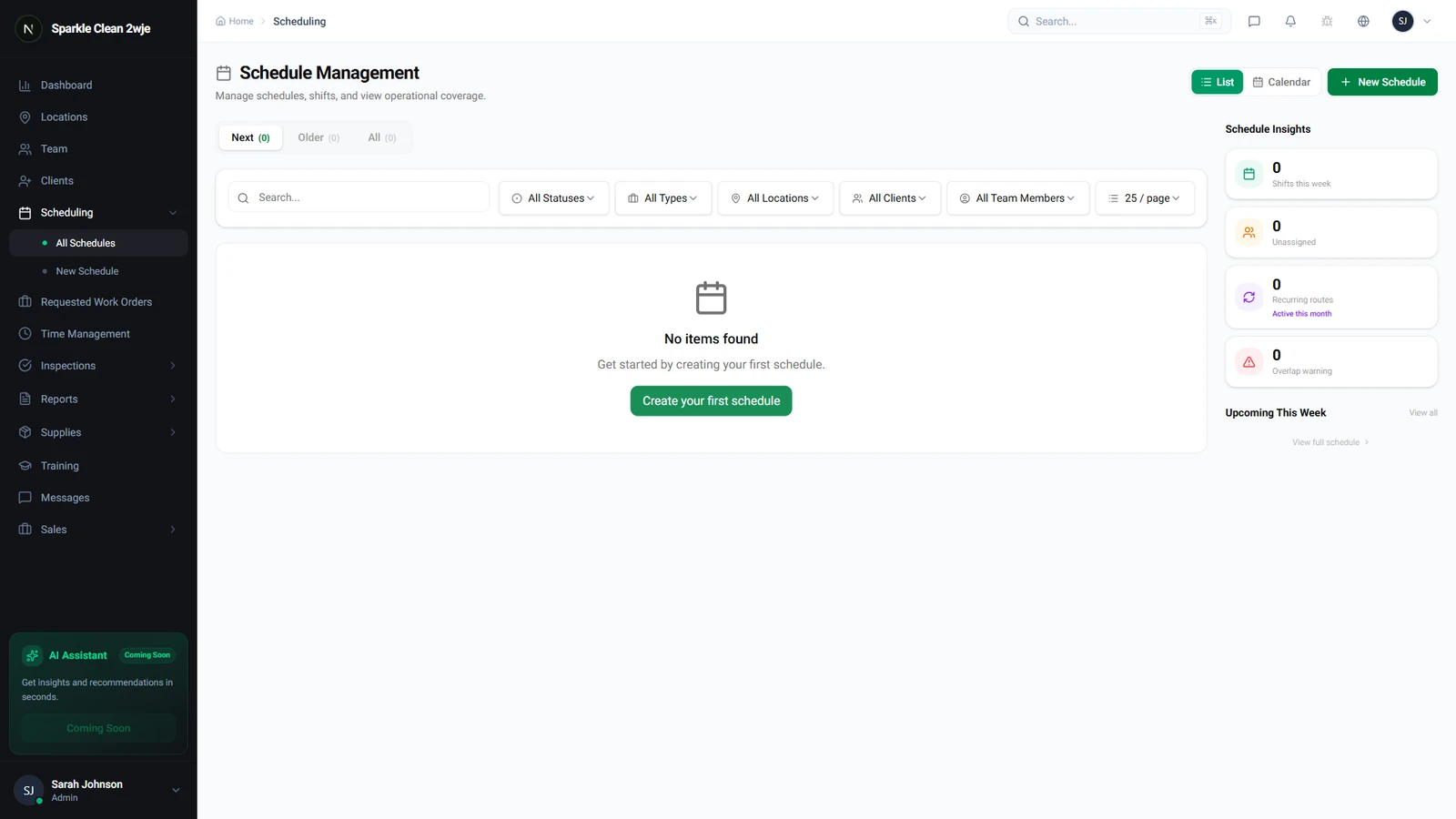
Go to Scheduling and locate the shift.
2
Click Cancel
Click ⋮ More → Cancel Schedule. Optionally add a reason (included in team notifications).
3
Confirm
Click Confirm Cancellation. All assigned members are notified.
⚠️
Important: Cancelled schedules cannot be un-cancelled. Create a new one if needed.
🙌
Need help? If you have any questions or run into issues, reach out through the Support section in your dashboard.