Scheduling
How to Reschedule a Shift
Move a shift to a different date or time.
Last updated June 10, 2026
Need to move a shift? Here's the quickest way.
1
Find the Shift to Move
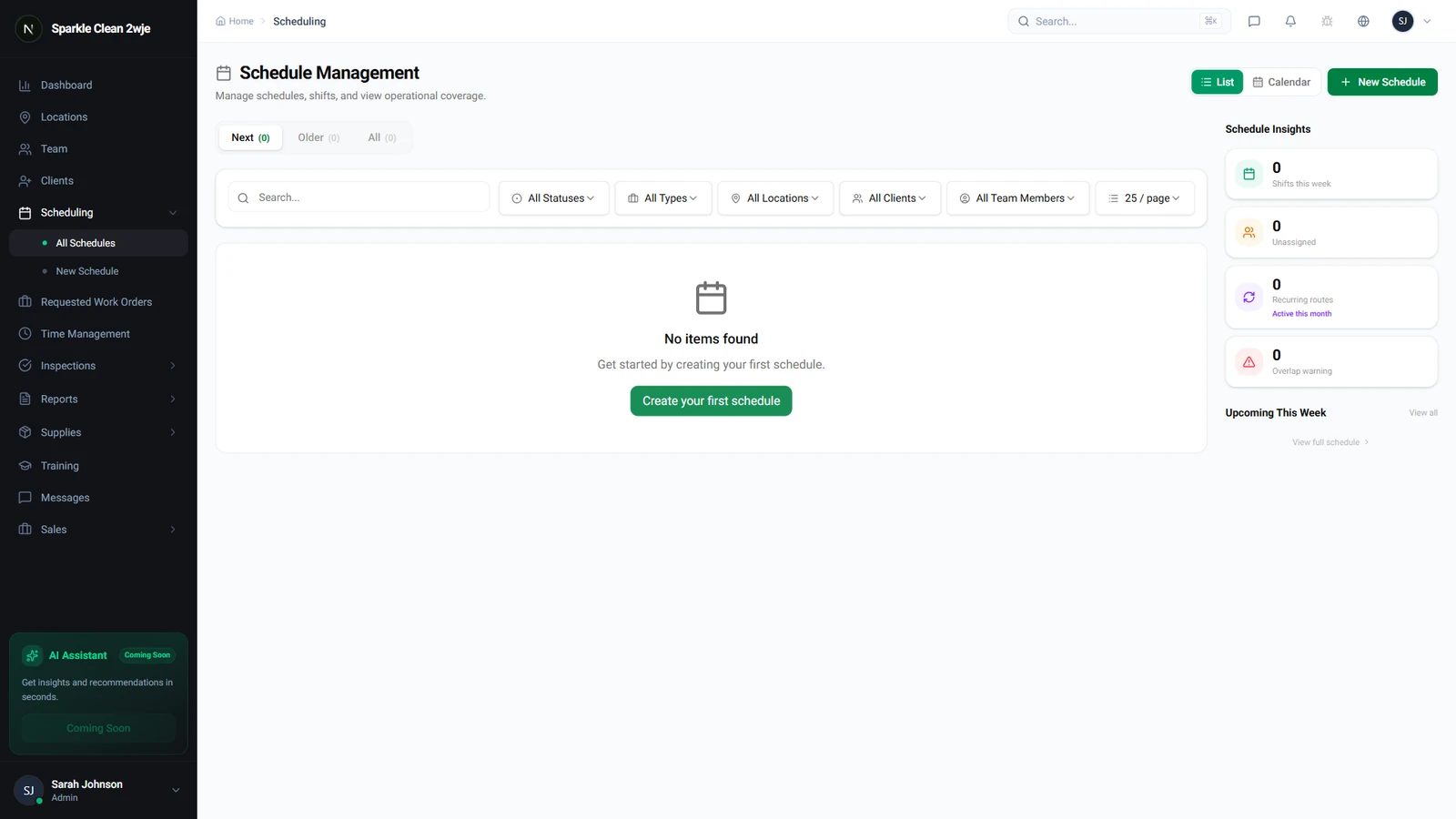
Go to Scheduling and find the shift you need to reschedule.
2
Click Reschedule
Click ⋮ More → Reschedule. A compact form shows date and time fields.
3
Pick New Date & Time
Select the new date/time. Conflicts with assigned members are checked automatically.
⚠️
Important: If a member has a conflict, you'll see a warning.
4
Confirm
Click Confirm. Team members are notified.
💡
Pro tip: You can also drag-and-drop in Calendar view to reschedule visually.
🙌
Need help? If you have any questions or run into issues, reach out through the Support section in your dashboard.