Scheduling
How to Edit a Schedule
Modify time, team, or details.
Last updated August 1, 2026
Plans change, update a schedule without recreating it.
1
Find the Schedule
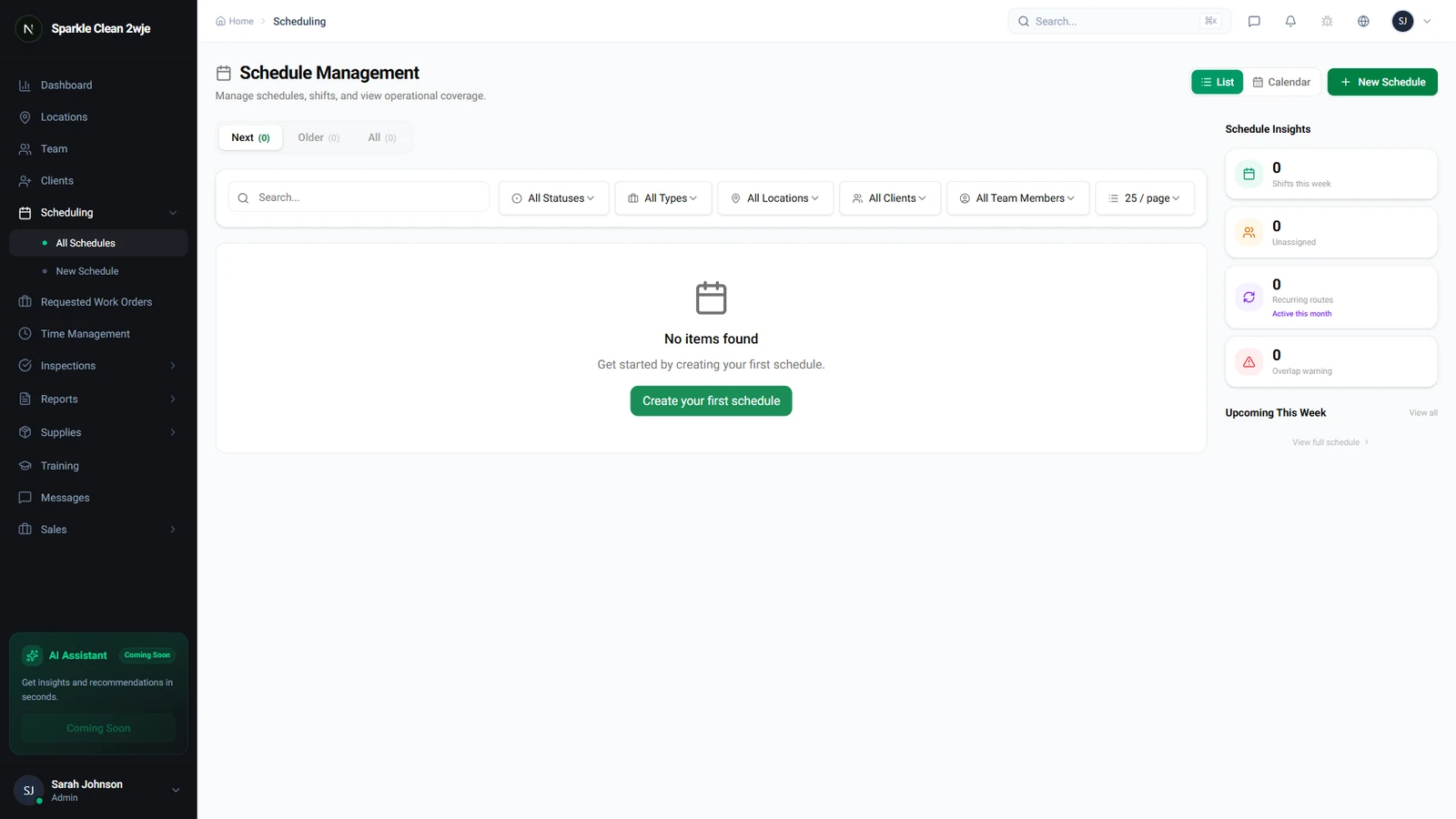
Go to Scheduling and find the schedule to edit.
2
Click Edit
Click the schedule → Edit. Form opens with current values.
3
Update Fields
Change date, time, team, or notes.
⚠️
Important: If team members already clocked in, changing time may create conflicts.
4
Save
Click Save. For recurring schedules, choose "this occurrence" or "all future".
🙌
Need help? If you have any questions or run into issues, reach out through the Support section in your dashboard.